Password recovery and change
How to recover a forgotten password for your Reservine account and how to change your password after signing in. Step by step with real screenshots.
Password recovery and change
You recover a forgotten password yourself within a minute – a link for setting a new one arrives by email. And if you know the password and just want to change it (after the first sign-in, say), you do it in the profile settings.
Where to find it
- Password recovery: the sign-in page of your booking page, that is
yourname.reservine.me/login, the Reset password link. The direct address isyourname.reservine.me/reset-password. - Password change: after signing in, Profile → Settings → Change password.
Recovering a forgotten password
1. Open password recovery
On the sign-in page of your booking page (yourname.reservine.me/login) click Reset password. You can also go straight to yourname.reservine.me/reset-password.
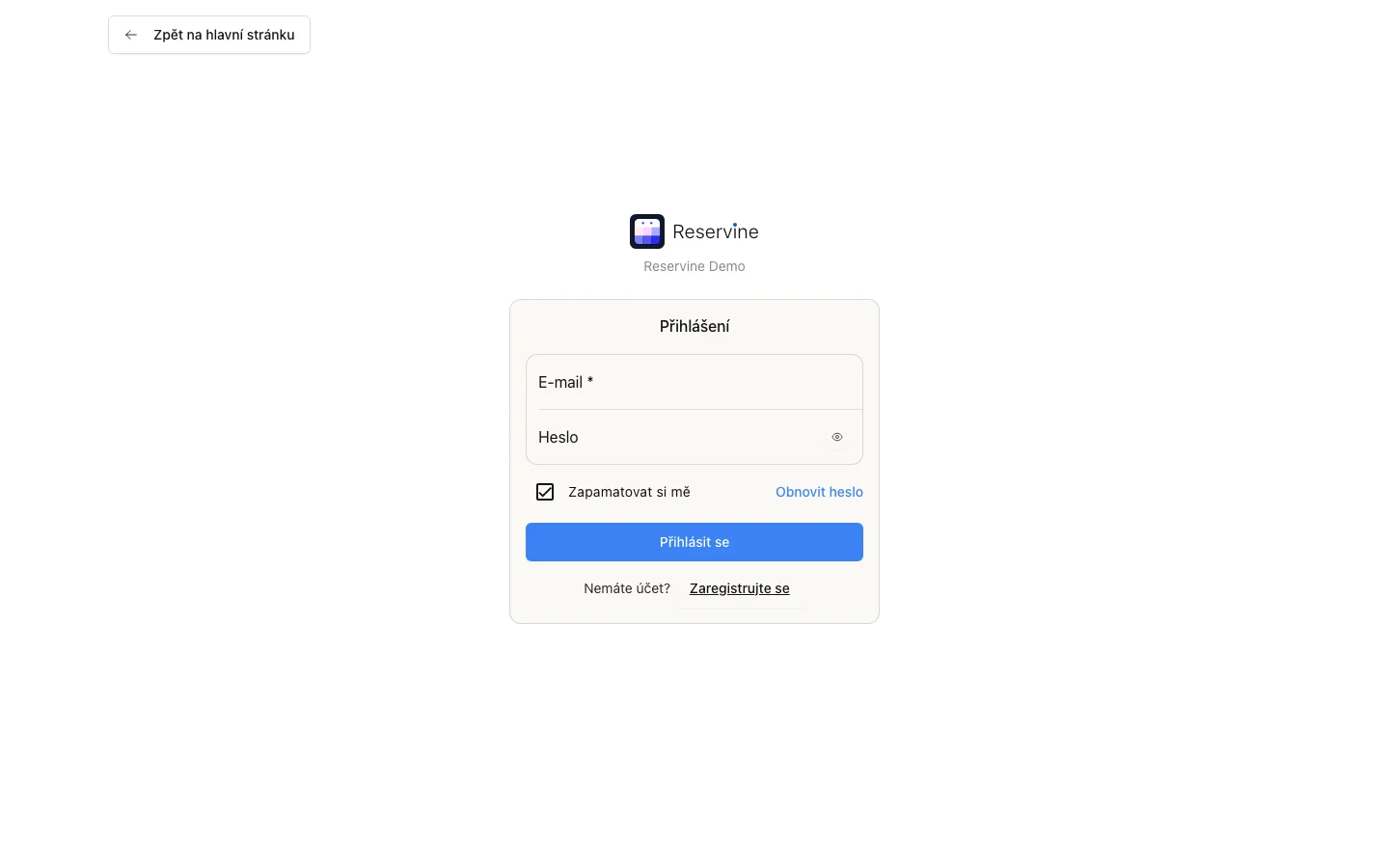
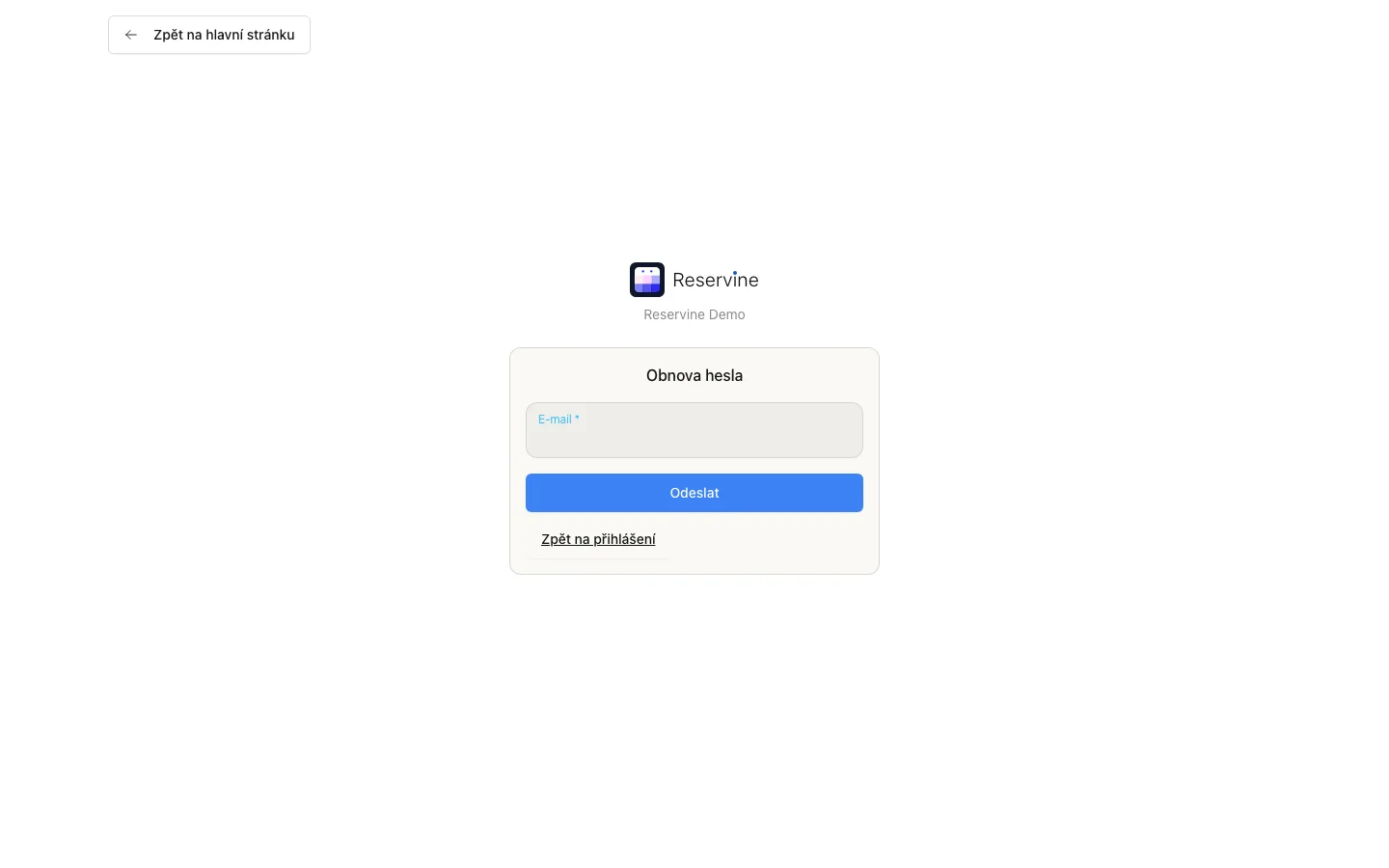
2. Enter your email
Fill in the email you sign in to Reservine with and click Send. Within a few minutes you will receive a message with a link for setting a new password. If it does not arrive, check the spam folder and that you entered the right email.
3. Set a new password
Click the link in the email and choose a new password. It must have at least 6 characters, contain a digit and must not contain diacritics.
The link in the email has a limited validity. If it has expired, start the password recovery again.
Changing the password after signing in
You know the password and just want to change it? After signing in, open your profile (the icon in the top right) → Settings and in the Account settings section click Change password. You enter the current password and the new one twice.
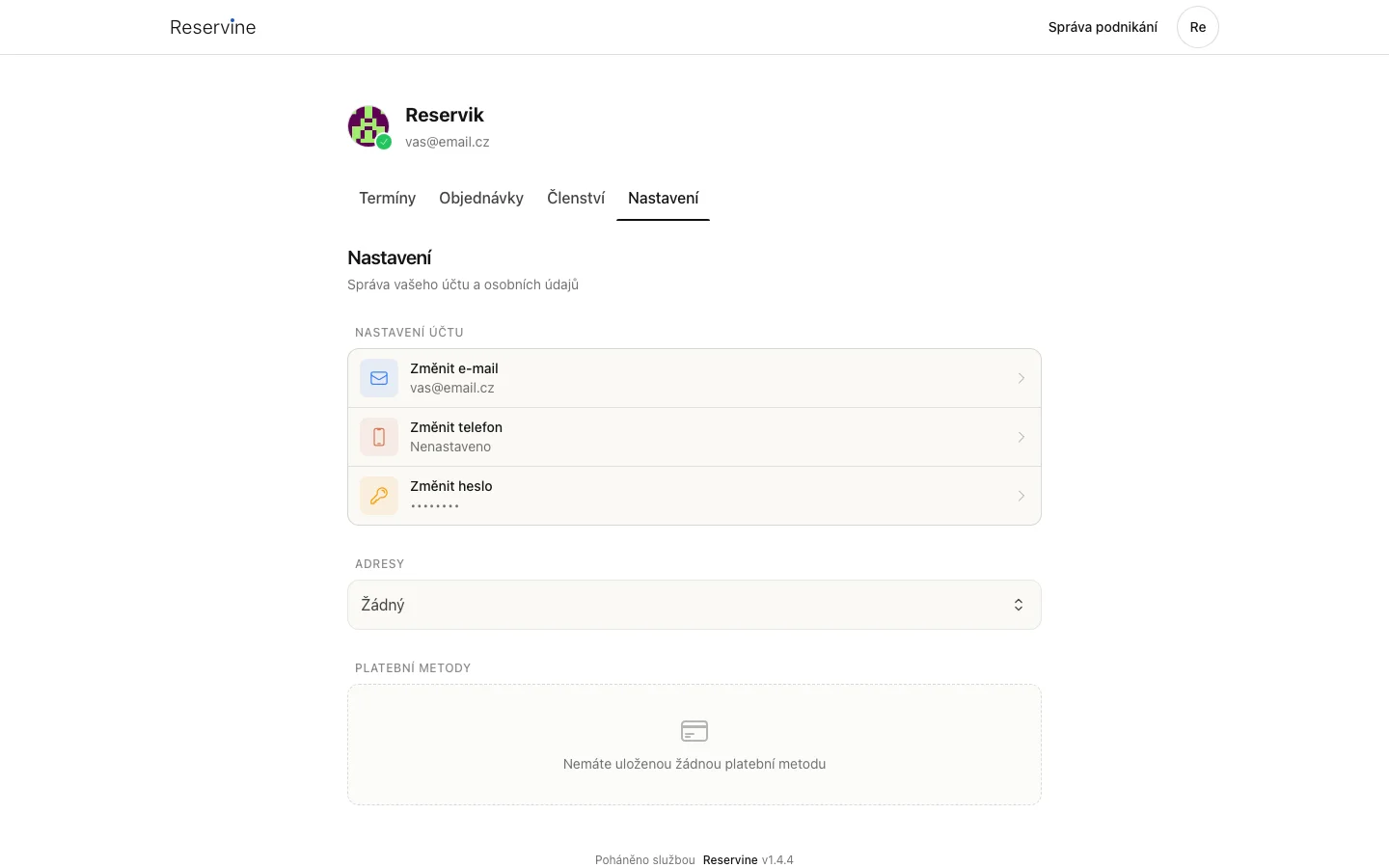
The same rule applies to the new password: at least 6 characters, a digit, no diacritics.
Changing the password does not sign you out of the current device. On other devices you will sign in with the new password once the session expires.
First sign-in from us?
If you received a generated password from us (e.g. when a new account was handed over), we recommend changing it to your own right after the first sign-in – following the previous chapter.
An employee's password
An employee for whom you created an account in the admin recovers their password with the same procedure on the sign-in page. As an administrator you can also change their password in the employee detail with the Change password button, see Employees.
Frequently asked questions
The email with the link did not arrive. Check spam and verify that the entered email matches the one you sign in with. If you are not sure about the email, contact us – we will help.
Does password recovery also work for clients (end customers)?
Yes, the procedure is the same. Every user recovers their password at the same address yourname.reservine.me/reset-password.
I opened the link, but the form says it is invalid.
The link has a limited validity and can be used only once. Return to yourname.reservine.me/reset-password and request a new one.
My password will not save. Check the three rules: at least 6 characters, at least one digit and no diacritics (accents). Both entries of the new password must match.