Extensions
How the add-on marketplace, the trial period and the subsequent management of active integrations work.
Extensions
Extensions are add-ons you switch on according to what you really use. You will find them in Settings → Integrations (Nastavení → Integrace), the Marketplace tab; active add-ons are on the Subscriptions tab.
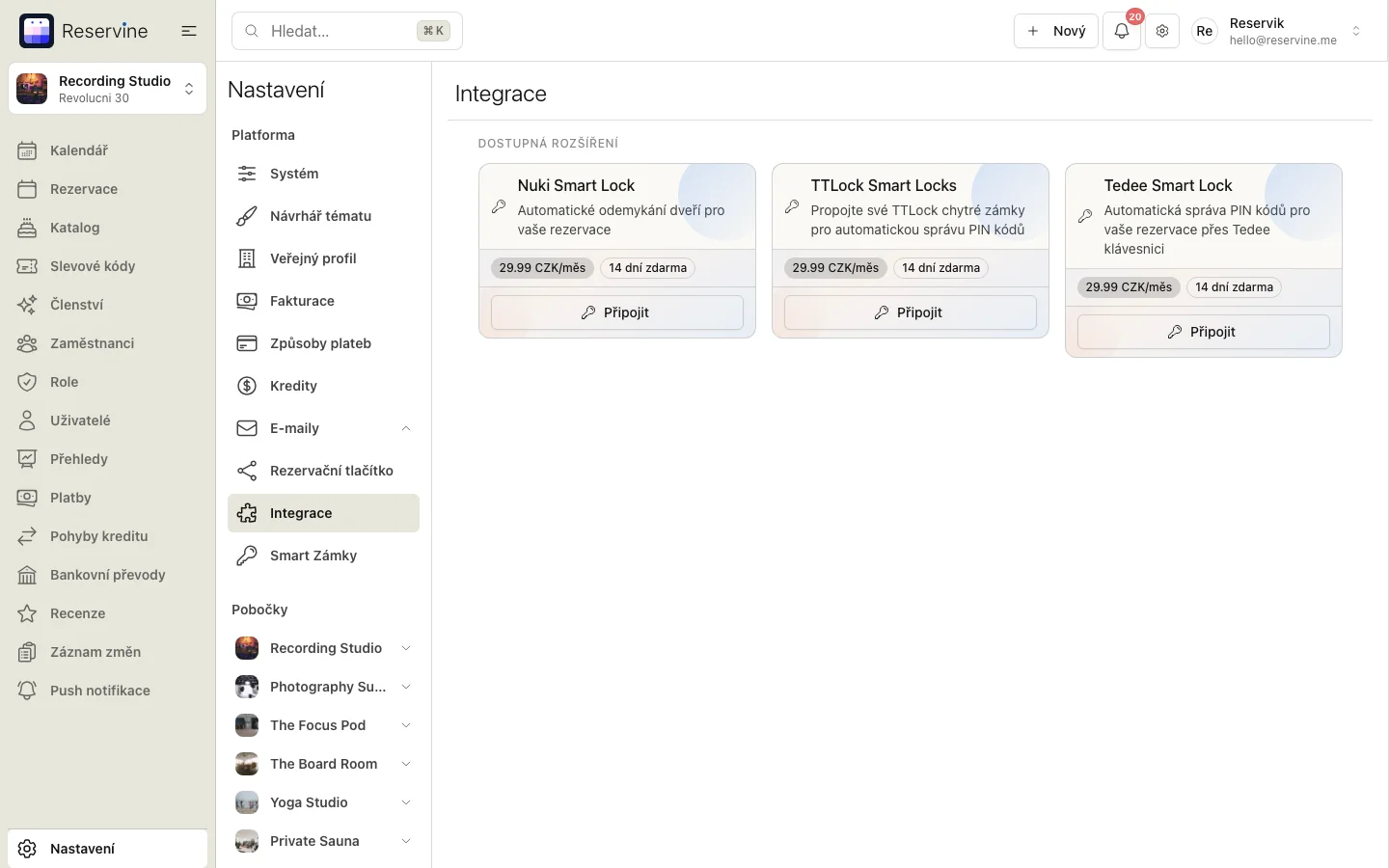
How it works
Each extension card usually shows:
- name and a short description
- price or trial information
- current status
- an action such as connect, buy, manage or reactivate
Common extension statuses
| Status | What it means |
|---|---|
| Available | The extension is not active yet |
| Trial | The trial period is running |
| Active | The extension is switched on and usable |
| Cancelling | Runs until the end of the period, but will not renew |
| Inactive | The extension is switched off |
With smart locks the connection wizard often opens right after activation, so you continue straight away by connecting the account and loading the devices.
Typical activation procedure
- Open Settings → Integrations.
- Pick the add-on you want to activate.
- If it has a trial, you can start it right away.
- If it is paid, you complete the purchase or activation.
- For extensions that require connecting an external service, you go through the configuration wizard.
Cancelling a subscription
In the integration detail click Cancel and choose the way:
- Cancel at the end of the period: the integration and the locks stay active until the end of the current billing period, then they are deactivated.
- Cancel immediately: the integration is deactivated right away and you lose access to it.
A cancelled integration can be switched back on until the end of the period with the Resume button.
What happens after activation
Depending on the add-on type:
- new options appear in the settings
- a new communication channel is activated
- or further monitoring and dashboards become available
When to go to monitoring
With smart locks, activating the add-on alone is not enough. After connecting the account you still:
- check the loaded devices
- assign them to a branch
- verify the status in smart lock monitoring
Related pages
- Credits and billing - what some add-ons are paid from
- Connecting TTLock locks - the specific wizard for TTLock
- Connecting a Nuki lock - the specific wizard for Nuki
SEO settings
Meta tags, Open Graph and indexing of the public booking page - defaults for the whole account, overrides per branch and what is worth doing first.
Credits and billing
What credits are for, how to top them up by card or transfer, how to set up automatic top-up and where to find invoices from Reservine and billing details.