Notifications
How to enable email and SMS messages to customers per branch, set up several reminders and decide who on the team receives reservation emails.
Notifications
Notifications are the messages Reservine sends to customers on its own: a confirmation after booking, a reminder before the slot, a cancellation message or a thank-you after the visit. Here you decide which of them are sent, over which channel and how far in advance.
Where to find it
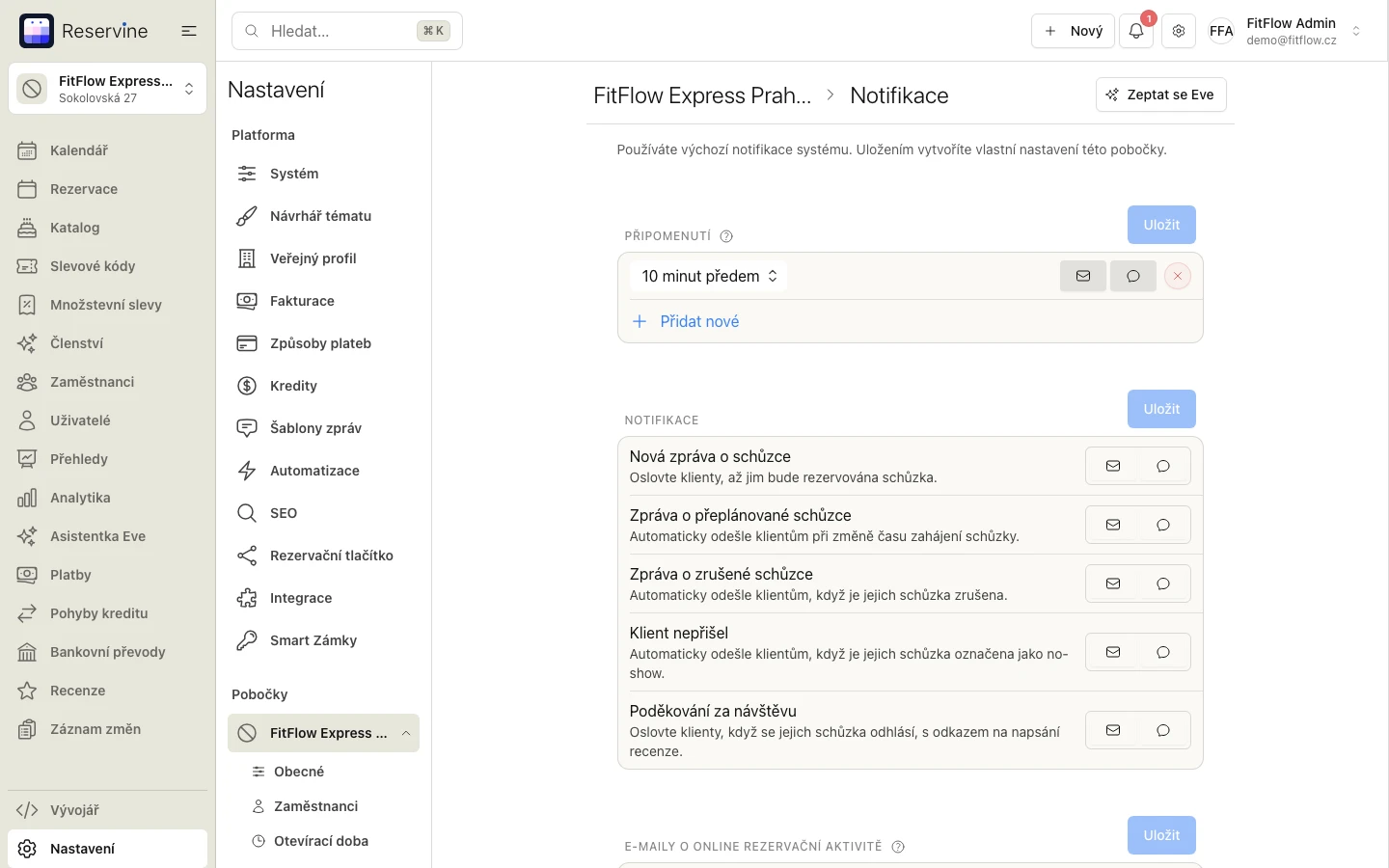
Notifications are configured per branch. In the admin open Settings (Nastavení), select the branch and click Notifications (Notifikace) in its menu.
Above the form there may be a bar about the source of the settings:
- "You are using the system's default notifications." The branch has no settings of its own yet and runs on the default.
- "Notifications are inherited from the account settings." The branch inherits the account settings.
In both cases saving creates this branch's own settings. When the bar is missing, the branch already has its own settings.
Events and channels
Each event has two switches: Email and SMS. An enabled channel means the message is sent; turning off both channels turns the message off entirely.
| Event | When it is sent |
|---|---|
| New appointment message | Right after the reservation is created |
| Rescheduled appointment message | When the start time changes |
| Cancelled appointment message | After the reservation is cancelled |
| No-show | When you mark the reservation as a no-show |
| Thank you for your visit | After the visit ends, with a link to write a review |
| Appointment reminder | Before the slot, according to the Reminders section below |
You edit the content of each message in message templates; notifications only decide whether and how it is sent.
Reminders
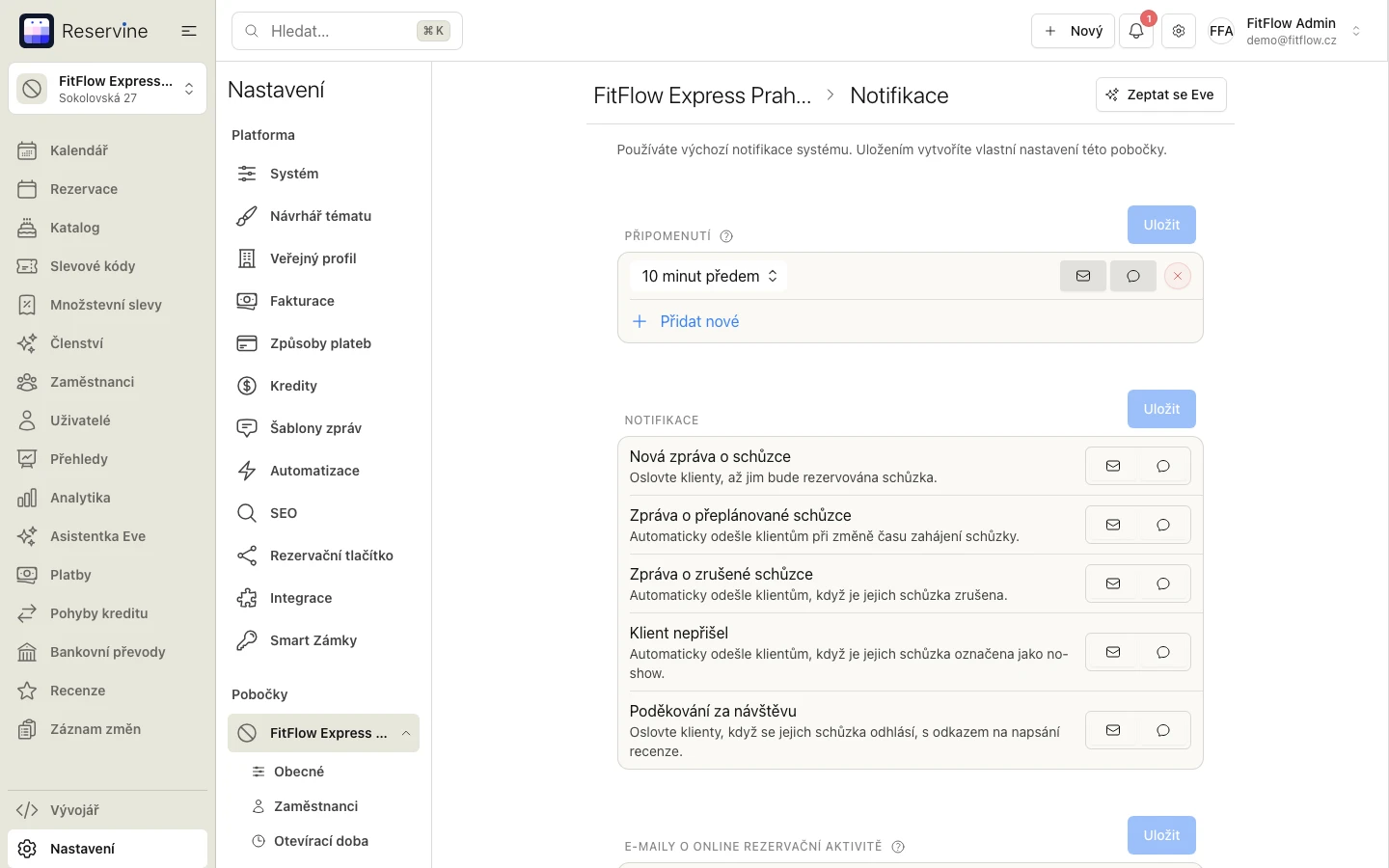
There can be several reminders, each with a different lead time and channel. A typical combination is an email a day ahead and an SMS two hours ahead.
- In the Reminders section click Add new.
- In the pill choose the lead time: 30 minutes, 1 hour, 2 hours, 4 hours, 8 hours or 24 hours ahead.
- Enable the Email and/or SMS channels.
- Save.
Each lead time can be used only once. A reminder without an enabled channel is ignored by the system; "You have no reminder set" means nothing is sent before the slot.
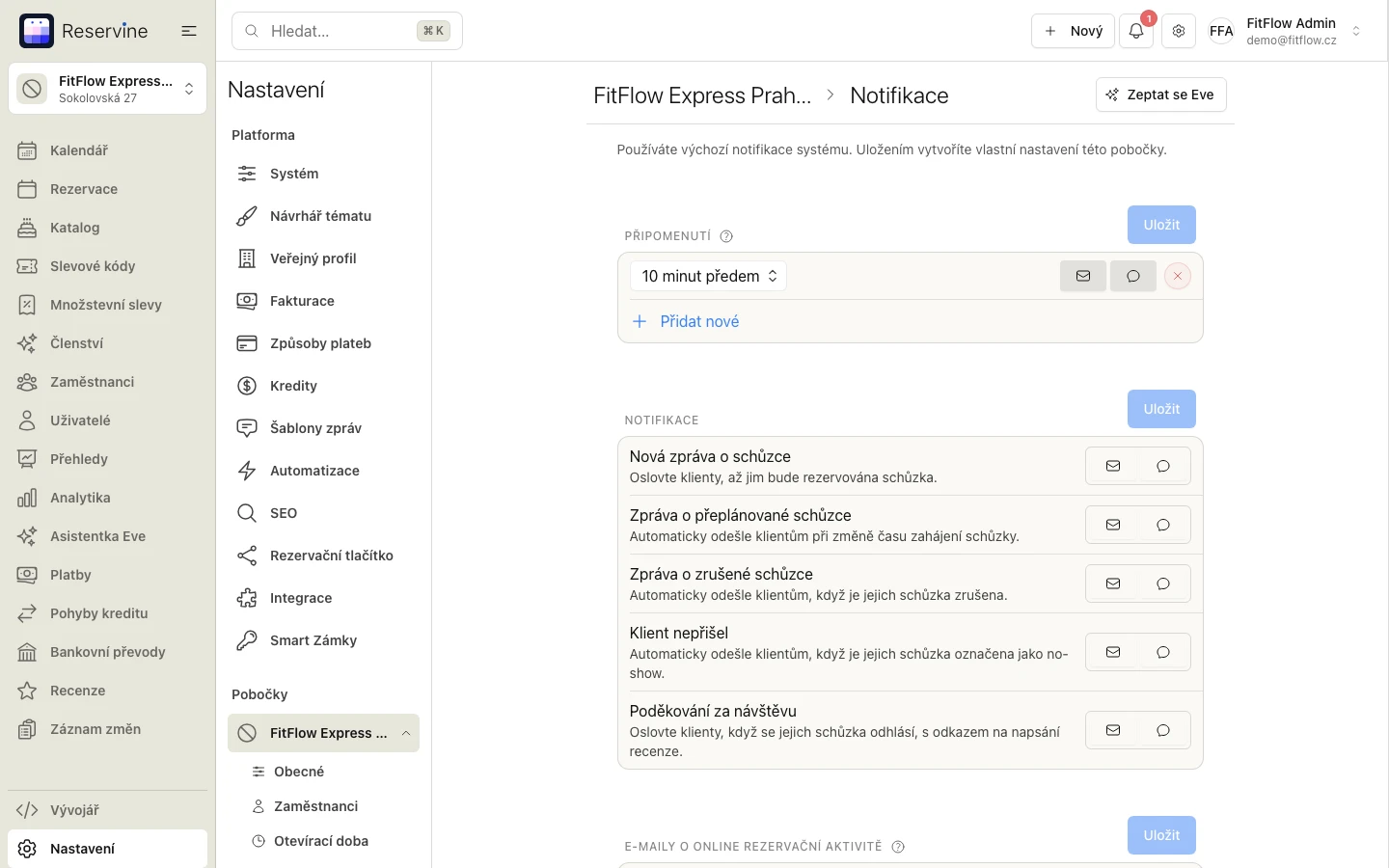
The lead time is counted from the start of the reservation's slot. Set it so the customer can still react: a day ahead to rebook, two hours ahead as a reminder to set off.
Emails for the team
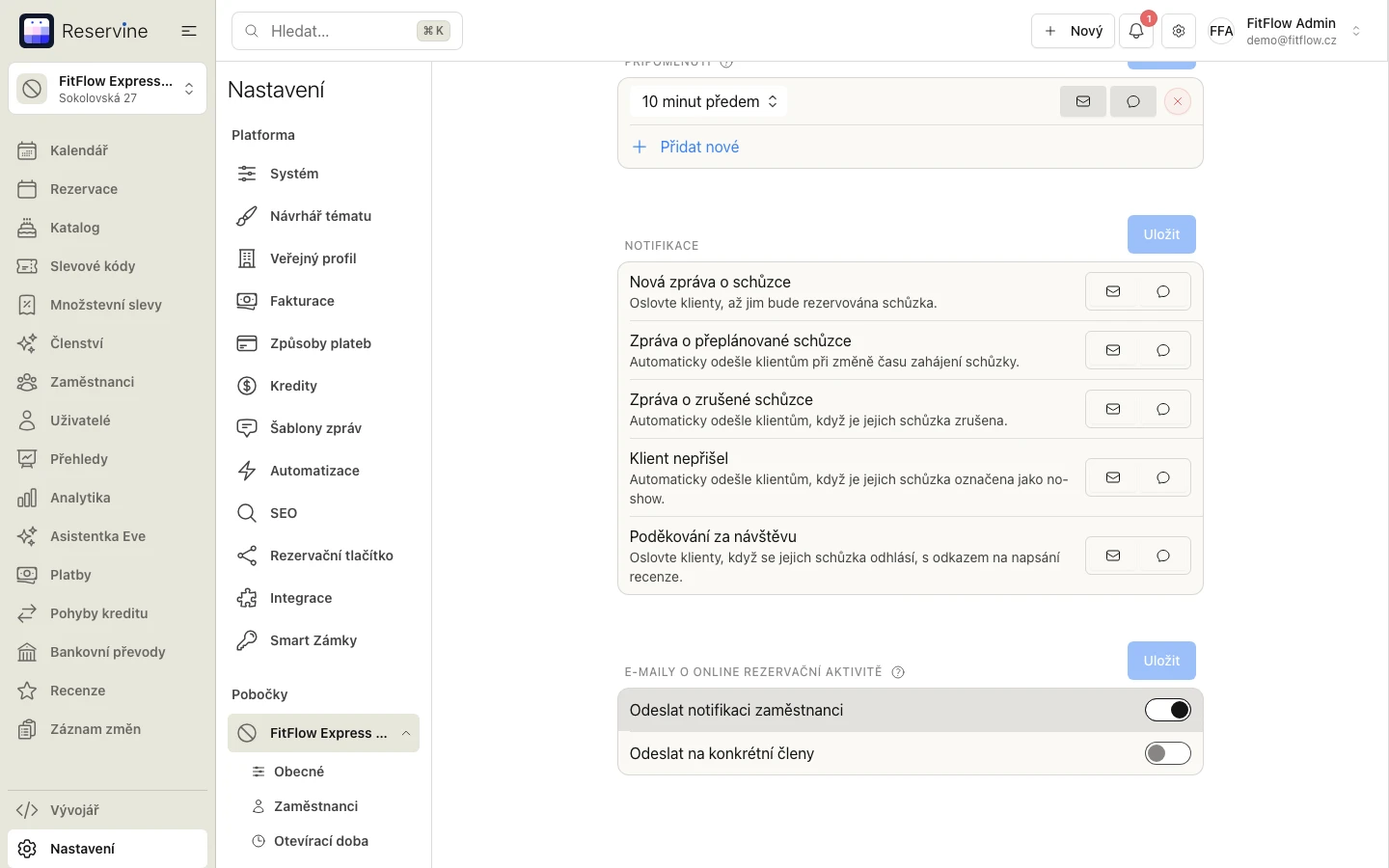
The Emails about online booking activity section governs who on the team gets an email when a customer books, reschedules or cancels a slot:
- Send notification to the employee: the email goes to the employee the reservation belongs to.
- Send to specific members: you pick specific team members who receive every message.
Both options can be combined. The texts of these emails correspond to the templates marked "(employee)".
SMS and credits
Every SMS sent consumes credits according to the text length. You see the segment count in the SMS template editor; the balance and top-ups are handled in Credits and billing. The email channel does not consume credits.
Enable SMS only where it makes sense. An SMS reminder two hours ahead shortens the wait for customers who do not turn up; a reservation confirmation is usually enough by email.
Frequently asked questions
The customer did not get an email. Check that the event has the Email channel enabled, that the reservation belongs to the branch you are editing, and that the customer has an email filled in on the reservation detail.
Can each branch have different notifications? Yes, the settings are per branch. Until you save the branch, it inherits the default or account settings.
I see a message about legacy records. The text "The settings contain legacy records this editor cannot safely edit" means the configuration includes a channel that no longer exists. Nothing has changed; contact support.
Where do I set up messages beyond these events? Rewards, delayed review requests or winning back inactive customers are handled by automations.
Message templates
How to edit the emails and SMS Reservine sends: channels, blocks, variables, language versions, preview and reverting to the default template.
Integrate
TTLock and Nuki smart locks, the reservation button, custom domain, SEO, marketplace extensions and credits - everything that connects Reservine to the outside.