Message templates
How to edit the emails and SMS Reservine sends: channels, blocks, variables, language versions, preview and reverting to the default template.
Message templates
Every message the platform sends can be rewritten your way. Reservation confirmation, reminder, thank-you, verification code. The text, blocks and subject are yours; the system fills in the reservation details on sending.
Where to find it
In the admin open Settings → Message templates (Nastavení → Šablony zpráv). The list is divided into the categories Reservations, Account, Purchases and System. There is a search box at the top.
For each template you see the channels it exists in (Email, SMS) and a Customized chip if you already have your own version. Templates that also have an employee version carry a + employee chip.
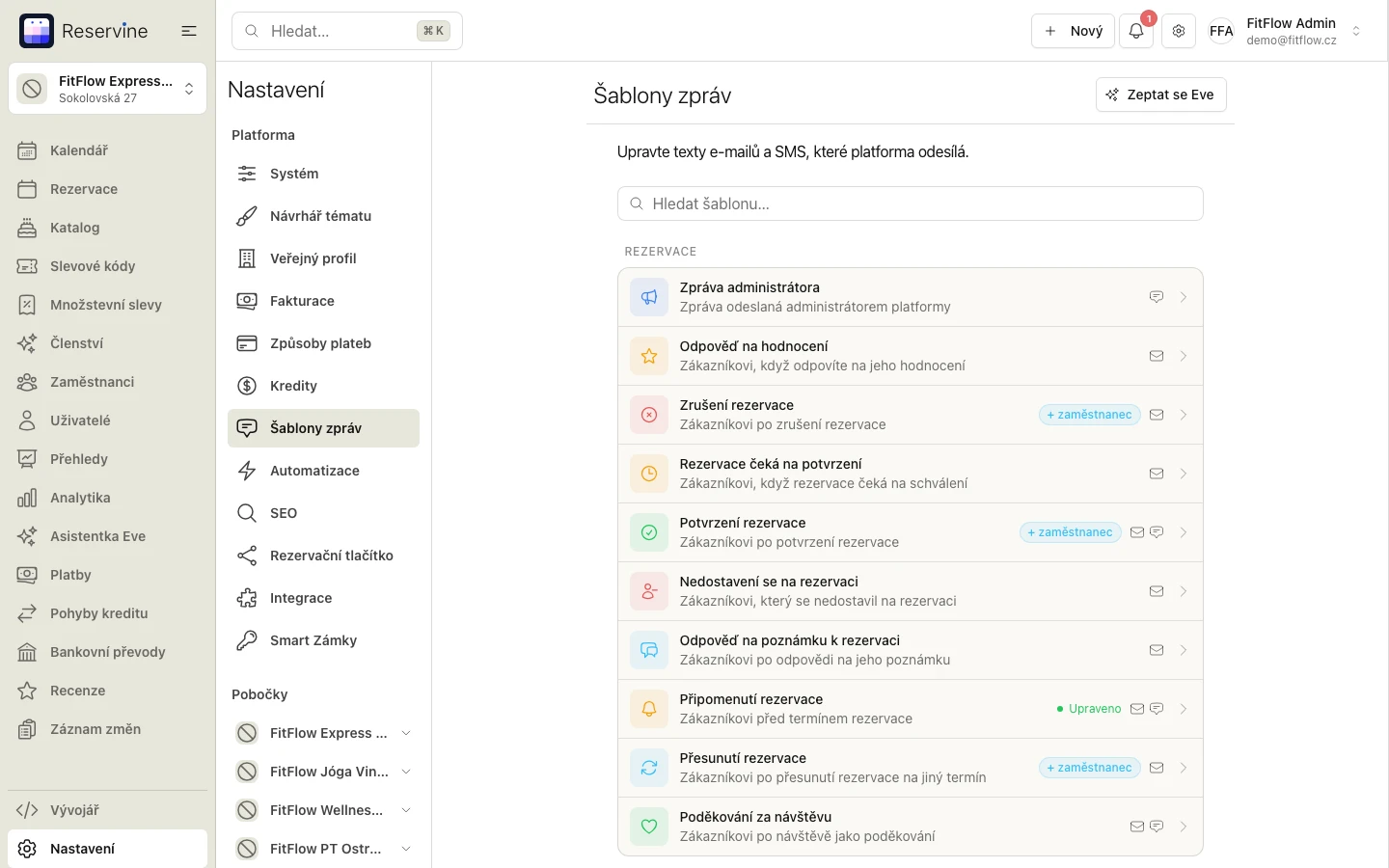
Which templates exist
| Category | Templates |
|---|---|
| Reservations | Reservation confirmation · Reservation pending confirmation · Reservation reminder · Reservation cancellation · Reservation rescheduled · Reservation no-show · Reply to a reservation note · Thank you for your visit · Reply to a review · Administrator message |
| Account | Email verification (on registration, general) · Email change · Phone number change · First password setup · Forgotten password · Password changed · Verification code (SMS) · User welcome |
| Purchases | Voucher order confirmation · Credit top-up confirmation |
| System | Smart lock low battery · Account status check · Contact form · General system email |
Reservation confirmation, cancellation and rescheduling additionally have an employee version ("New reservation (employee)" etc.), which you switch to in the editor.
The editor step by step
- Click a template in the list.
- In the header choose the Channel (Email / SMS) and Language (Czech / English). Each combination has its own content.
- For templates with an employee version switch between Customer / Employee.
- Edit the Subject, optionally the Preview text and the Message body.
- Check the Preview on the right.
- Save.
The chip in the header shows where the content comes from: Default (the system template) or Customized (your version). The edit applies to the whole account, that is, to all branches.
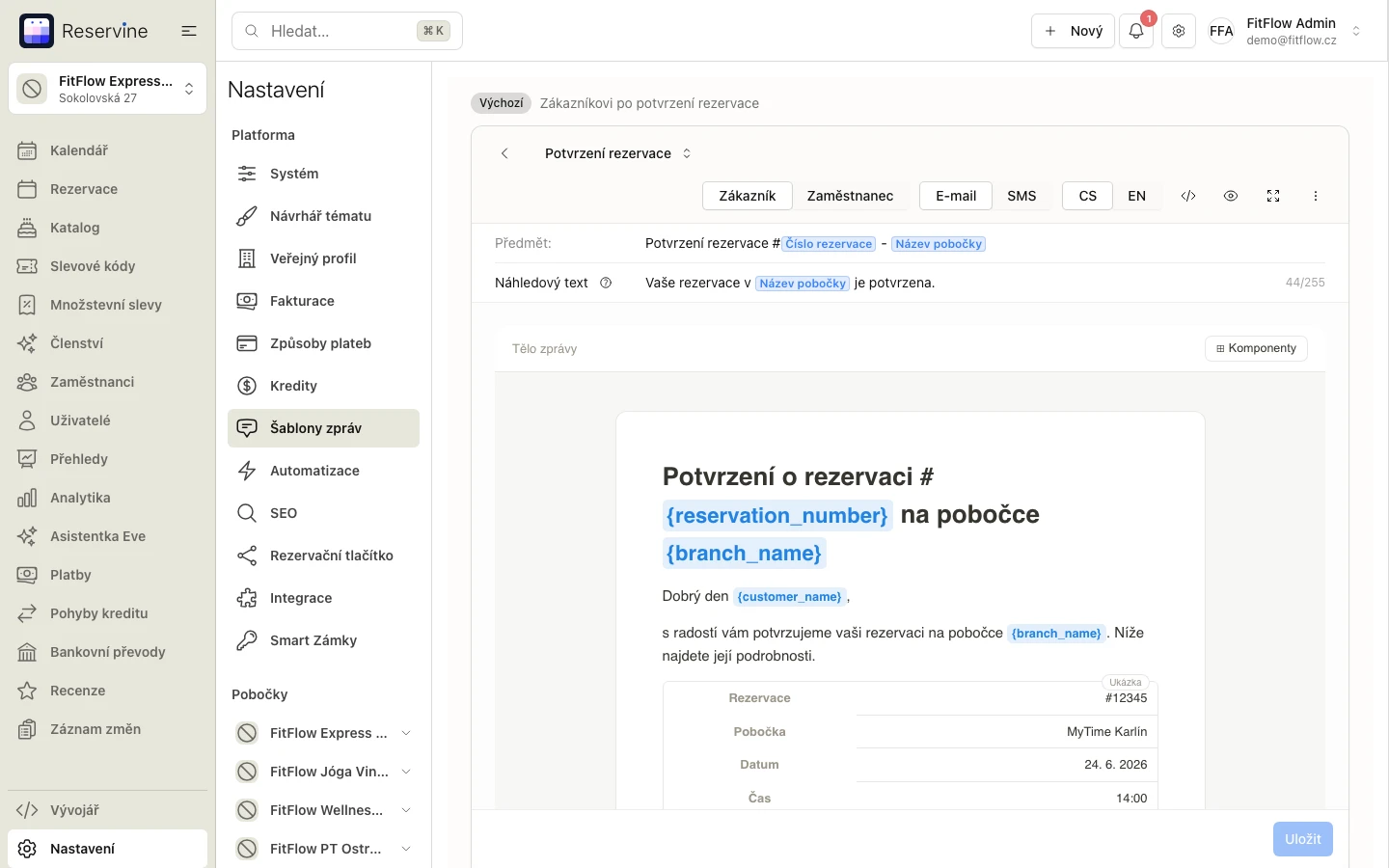
Subject and preview text
You insert a variable into the subject by typing "/" or by clicking a variable in the panel. The Preview text is a short sentence that the mailbox (Gmail, for example) shows next to the subject before the message is opened. If you leave it empty, the mailbox shows the beginning of the email.
Message body: blocks and text
The body is made of blocks. You write ordinary text and "/" opens a menu with text elements (Large heading, Smaller heading, Paragraph), Blocks and Variables. You drag blocks or move them with the arrows.
Blocks are ready-made parts of the email whose content the system fills in on sending. The most used:
- Reservation table: number, branch, date, time, price
- Reservation link, Review link, Directions link (Google Maps), Invoice link
- Entrance PIN and Branch PIN in a highlighted box
- Voucher detail, Transaction detail, Reschedule table
- Company logo, Header, Footer, Divider, Section, Columns, Table
Some blocks are required for a given template. Do not delete them — without them the customer loses key information; if you remove one by mistake, revert to the default template.
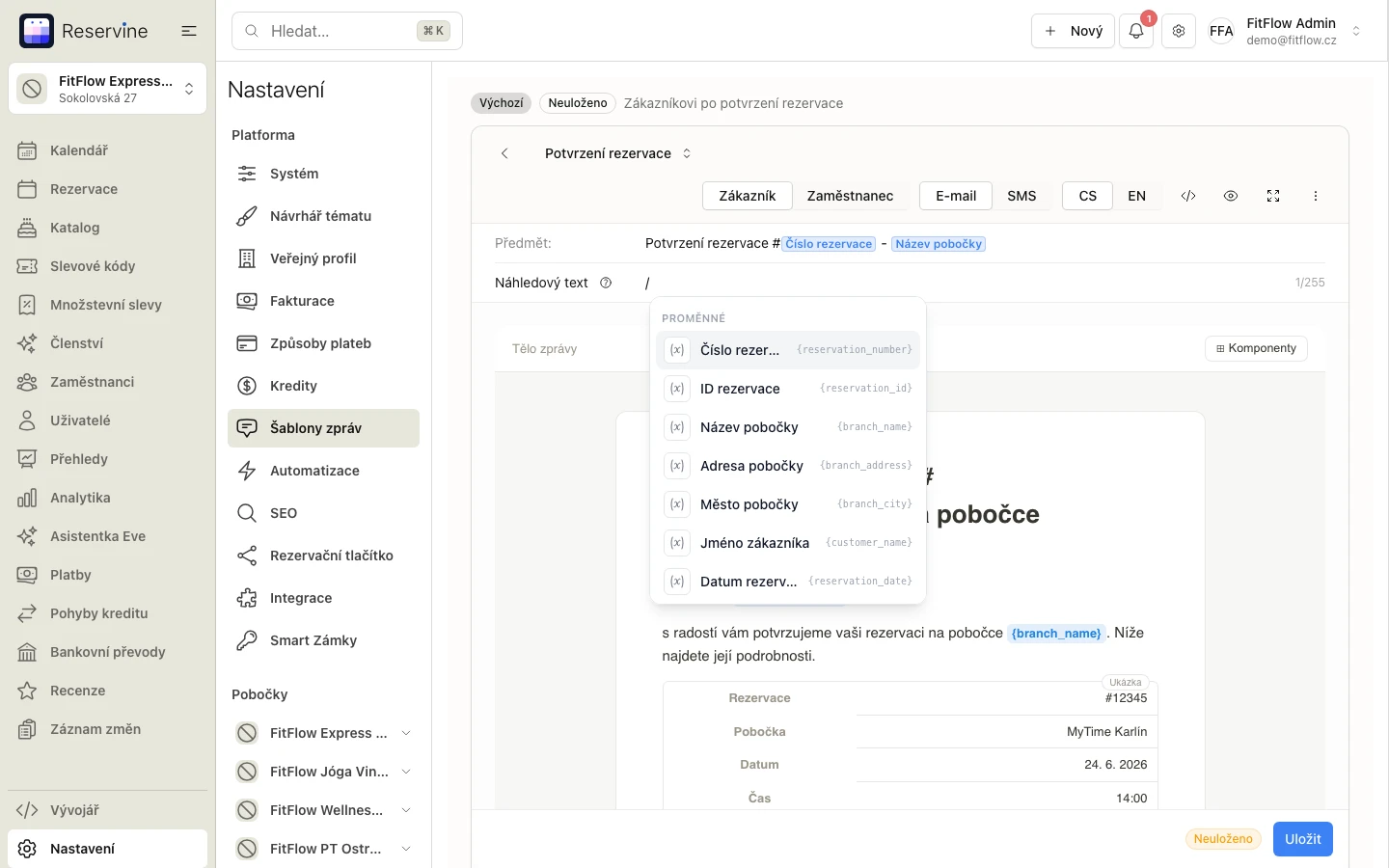
Variables
A variable is replaced with the real value on sending. Each has a sample in the panel. Which variables are available depends on the template; typically the customer's name, branch name, reservation date and time, reservation number, price, employee name, voucher code or verification code.
Visual and HTML mode
The Visual / HTML switch shows the source code. If the template contains custom HTML that the visual editor cannot display, it opens directly in source mode with a notice.
SMS
For the SMS channel there is a single Message text field and a phone-shaped preview. Below the text the encoding, character count and number of segments are calculated, that is, how many SMS are actually sent and paid for from credits.
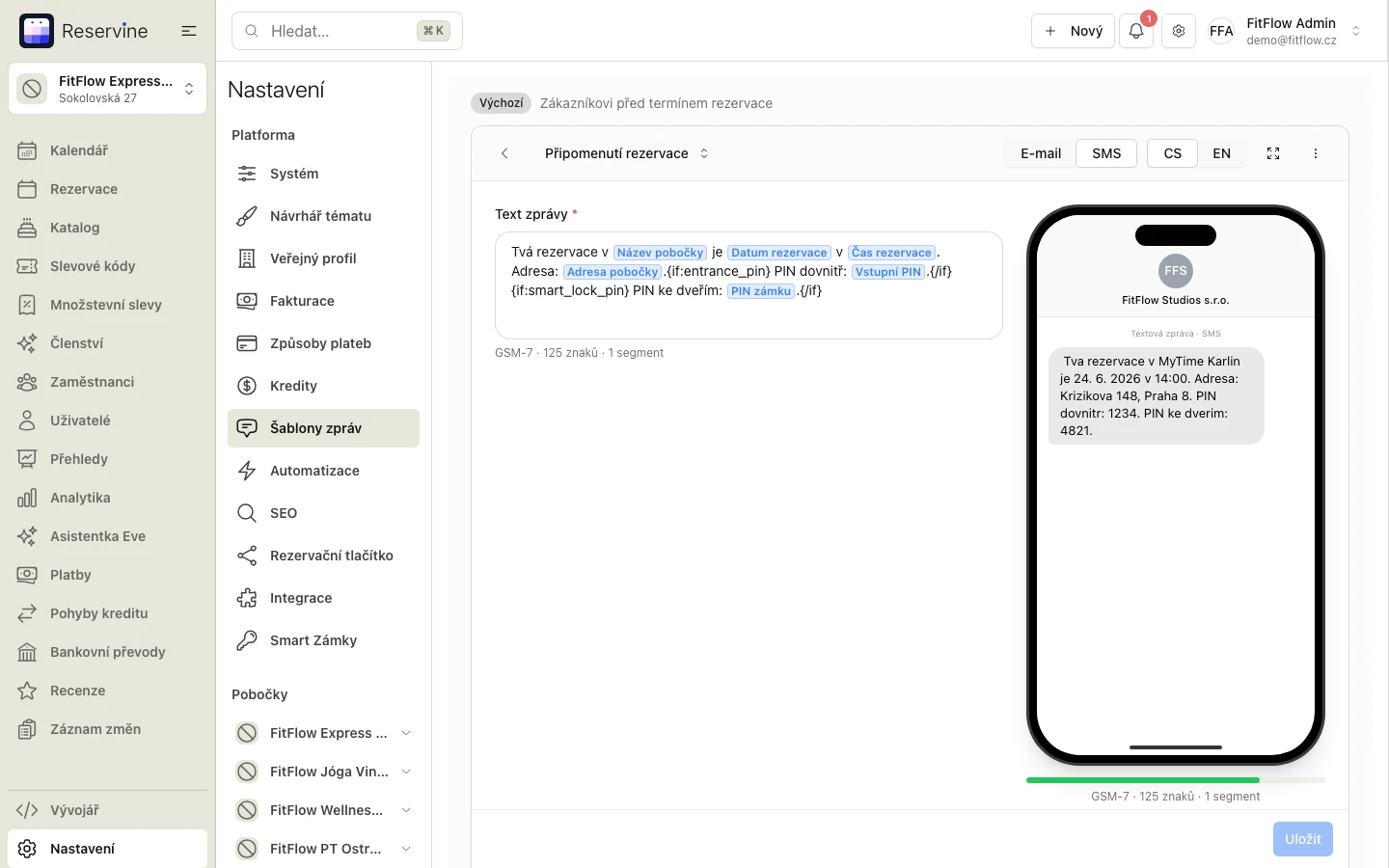
SMS are sent without diacritics. The preview shows the text exactly as the recipient will see it. The segment count below the text corresponds to how many credits the message costs.
Reverting to the default template
Two different actions in the editor header:
- Load default content replaces the editor content with the system template. The change takes effect only after saving, so you can still change your mind.
- Revert to default deletes your edit for the given language and channel combination. From then on the default template is sent.
When the system template changes after your edit, the editor warns you: "The default template has changed since your edit. Check that your version still matches." Your version keeps being sent; it is just worth comparing what is new.
Tips
- Before editing the text, switch to the Preview and look at how the default version looks. Often it is enough to change the greeting and the signature.
- Edit both language versions. A customer with an English interface gets the English template; if you do not rewrite it, they get the default.
- The Full screen button in the header gives the editor the whole window.
- Which messages are sent at all and when is governed by the branch notifications. The template only says what they contain.
- Email texts from automations are edited directly in the automation, not here.
Analytics
What the Overview, Demand, Customers, Acquisition and Sales tabs show, how to pick a period and branch, and what the numbers correspond to.
Notifications
How to enable email and SMS messages to customers per branch, set up several reminders and decide who on the team receives reservation emails.