Automations
How to set up rules that send a message, issue a voucher or refund a payment on their own after an event, and how to track what ran.
Automations
An automation is a rule of the form "when this happens, do that". A customer completes their fifth slot and gets a voucher. They cancel a reservation a day ahead and get their money back. They stay away for two months and get an email saying you miss them. None of it is done by hand.
Where to find it
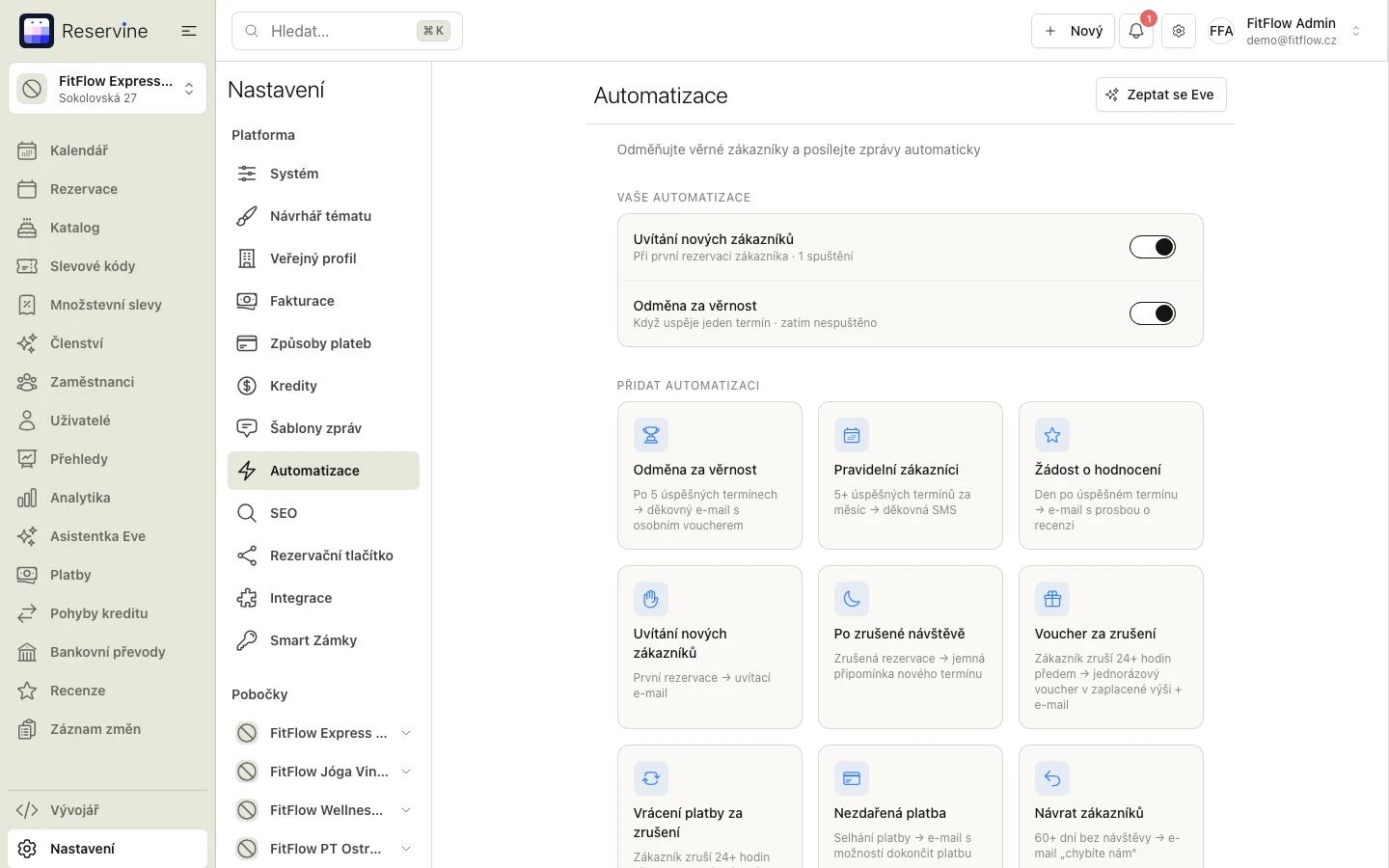
In the admin open Settings → Automations (Nastavení → Automatizace). At the top you see the Your automations list with an on/off switch and a run count. Below it is a catalogue of ready-made recipes and the Start from scratch button.
How a rule works
Every automation has three parts:
- When it should run (trigger): the event the rule reacts to.
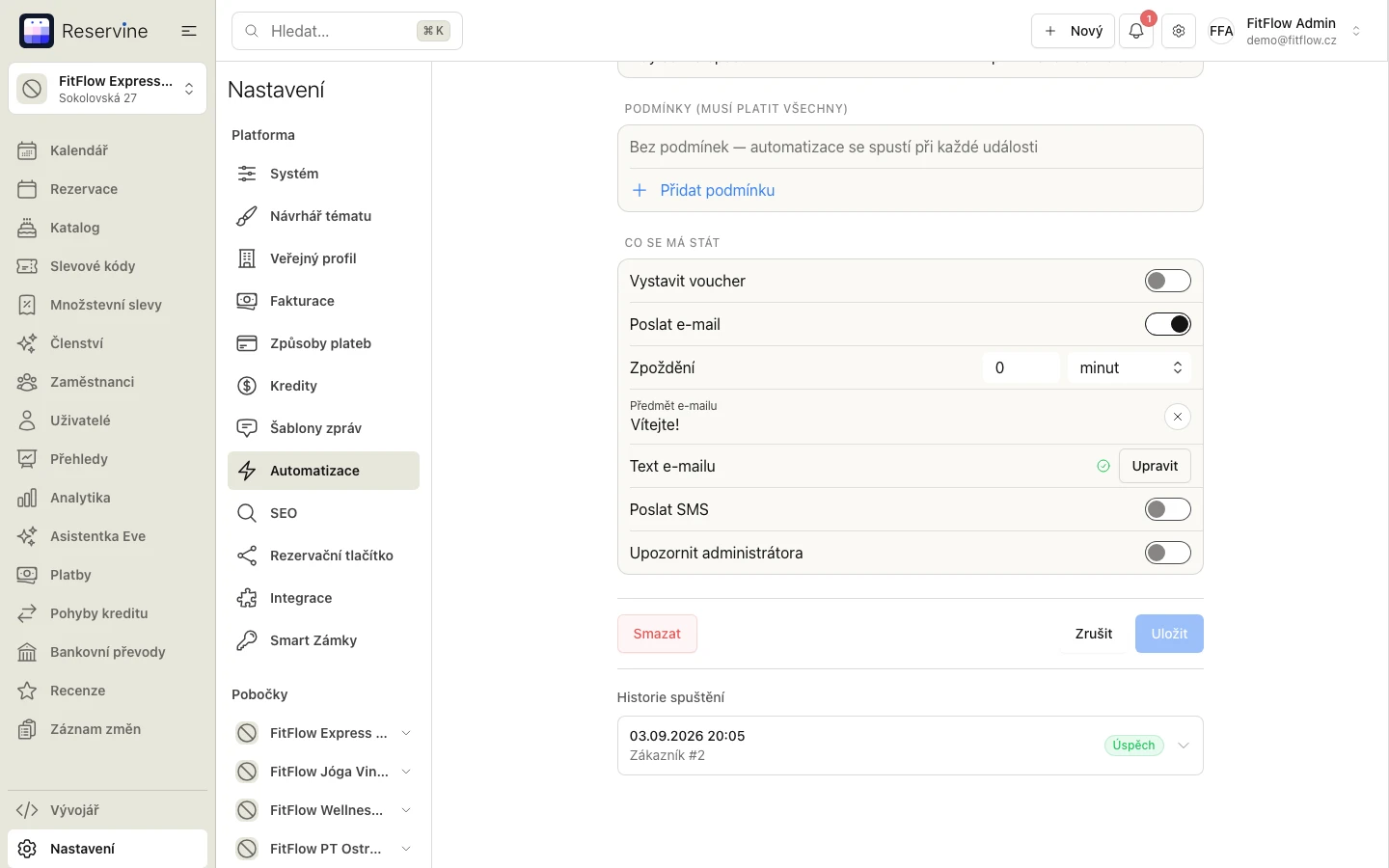
- Conditions: filters that must all hold at once. Without conditions the rule runs on every event.
- What should happen (actions): one or more actions, each with an optional delay.
Actions run in the order they appear in the rule. When the first action issues a voucher, the second action (an email) already knows its code.
Ready-made recipes
The fastest path is to pick a recipe. It opens a pre-filled rule where you only fine-tune the text and values.
| Recipe | What it does |
|---|---|
| Reward every 10th reservation | After every 10 successful reservations → thank-you email with a personal discount voucher |
| Loyalty reward | After 5 successful slots → thank-you email with a personal voucher |
| Regular customers | 5+ successful slots in a month → thank-you SMS |
| Review request | A day after a successful slot → email asking for a review |
| Welcome new customers | First reservation → welcome email |
| After a cancelled visit | Cancelled reservation → gentle reminder to book a new slot |
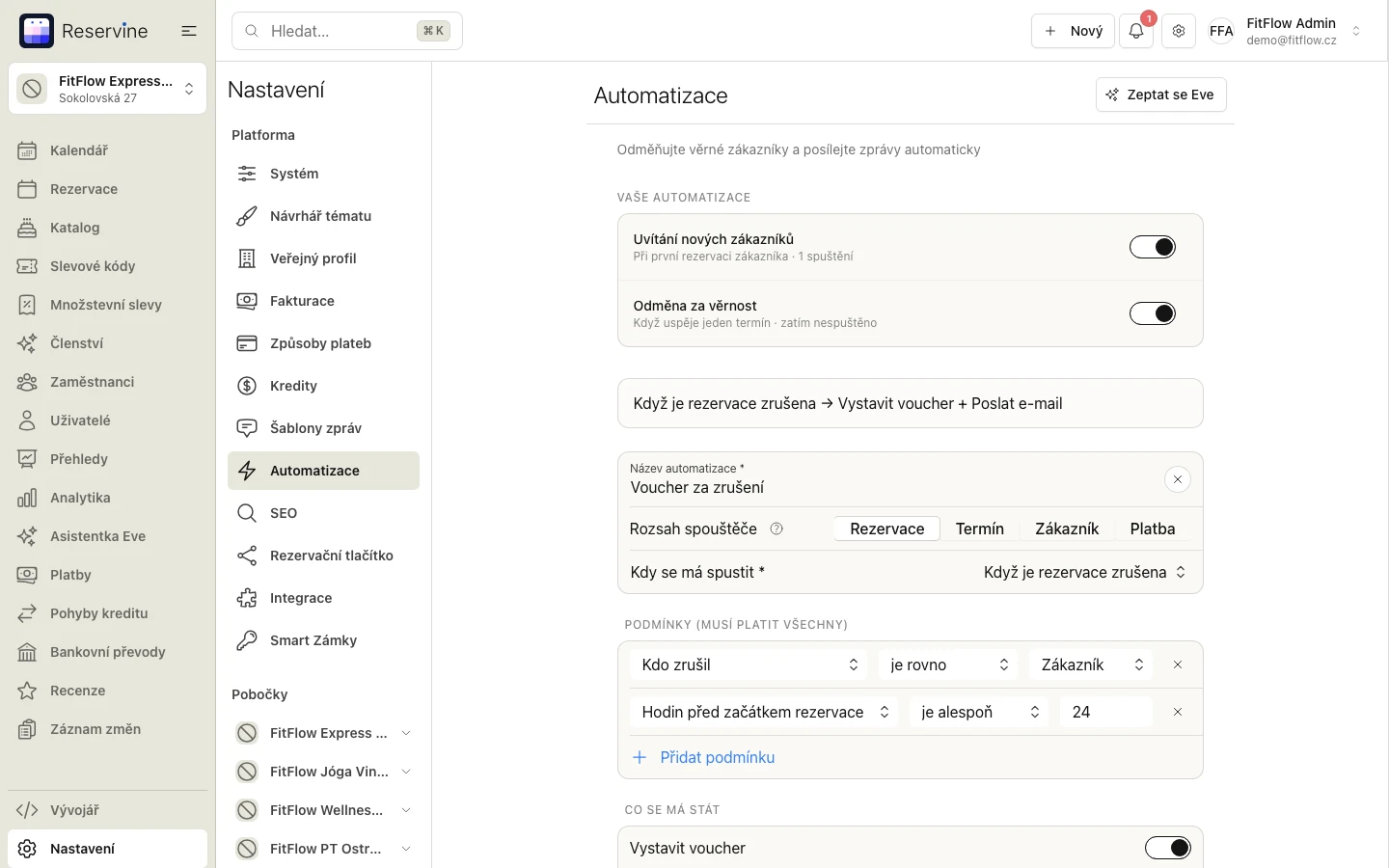
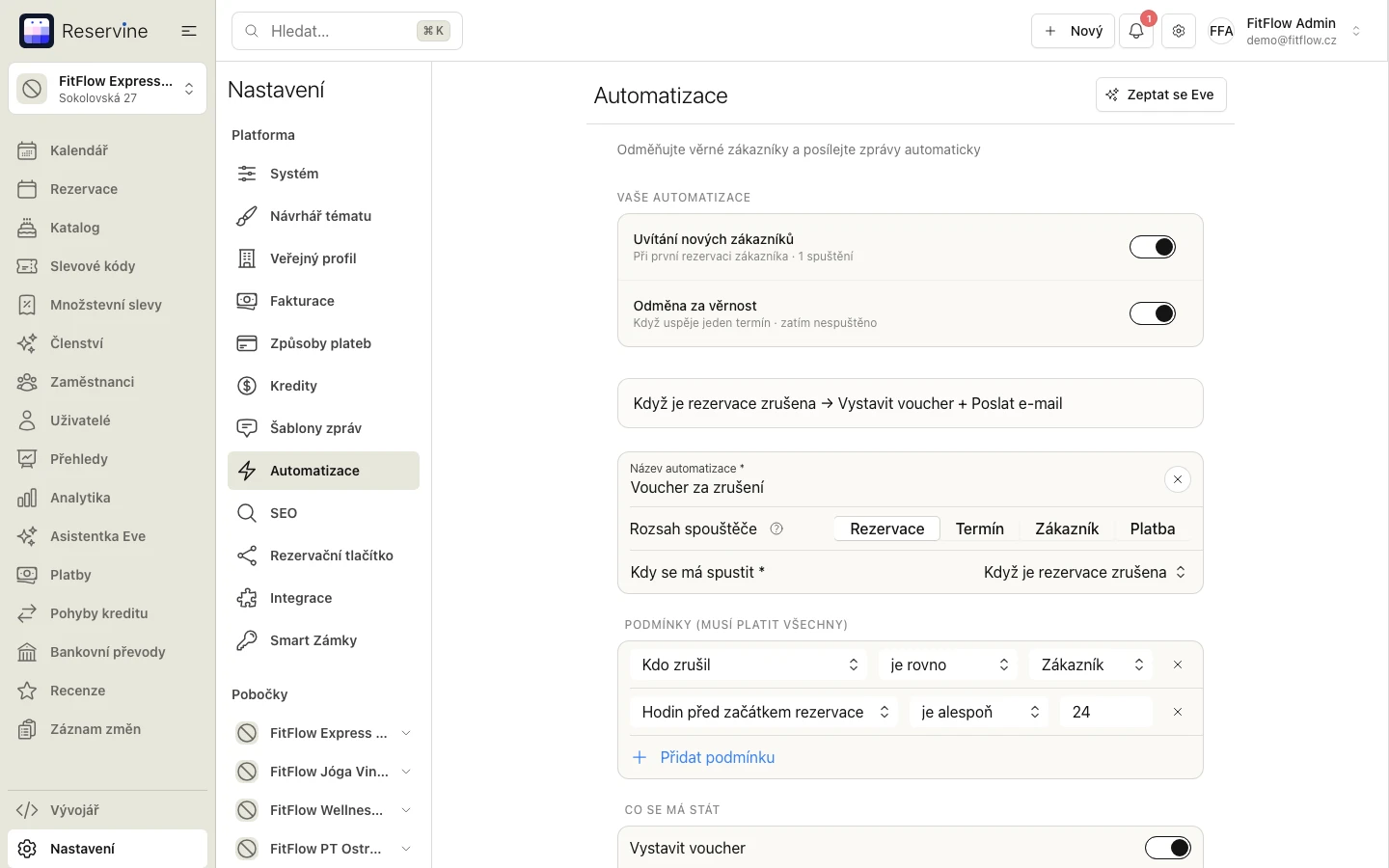
| Voucher for cancelling | Admin cancels 24+ hours ahead → one-time voucher for the paid amount + email |
| Refund for cancelling | Admin cancels 24+ hours ahead → full refund to the card + email |
| Failed payment | Payment failure → email with an option to complete the payment |
| Win back customers | 60+ days without a visit → "we miss you" email |
A custom automation step by step
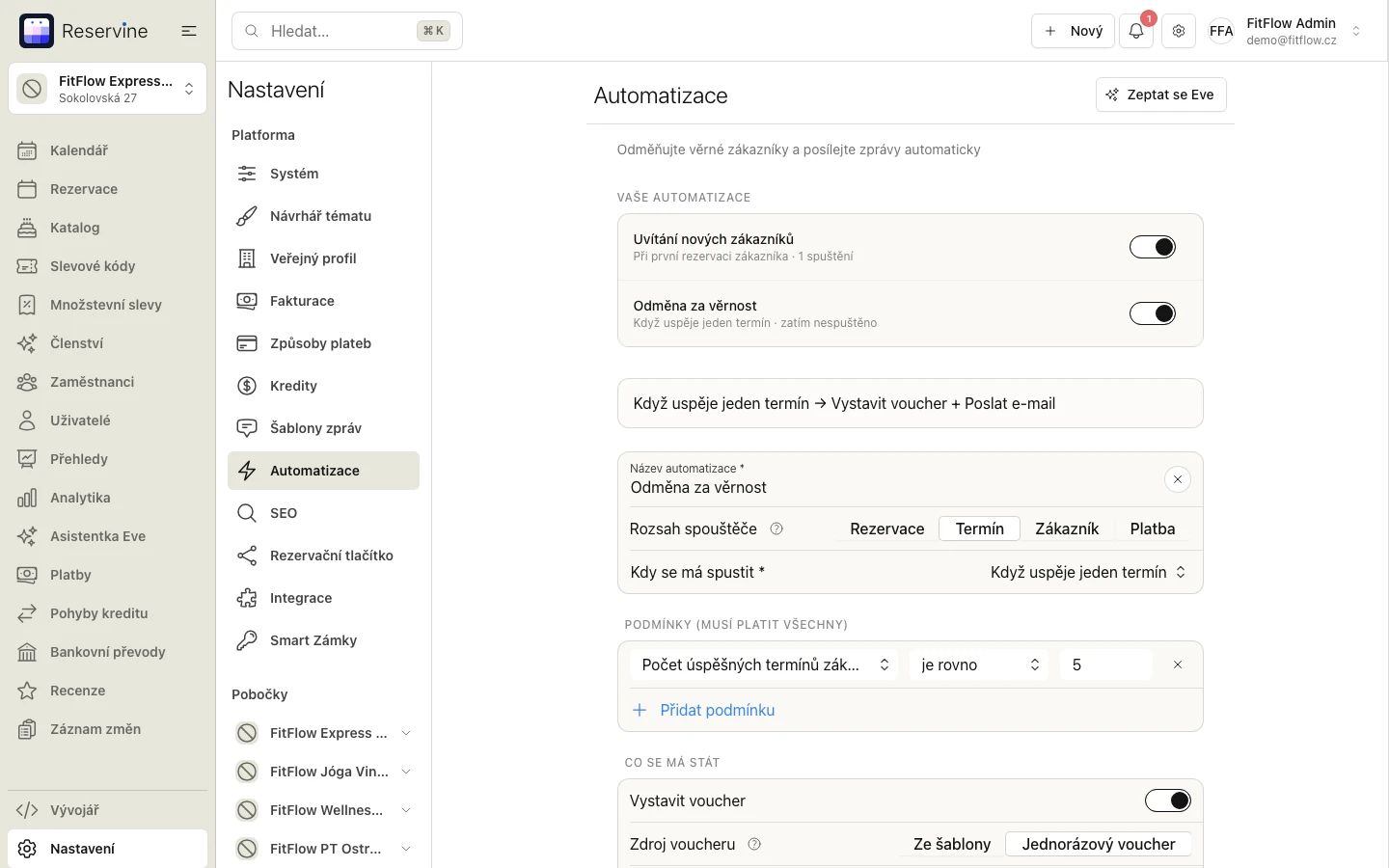
- Click Start from scratch (or open a recipe).
- Fill in the Automation name.
- Choose the Trigger scope: Reservation, Slot, Customer or Payment. The scope determines which conditions make sense.
- Choose When it should run.
- Add Conditions. Each has a field, an operator and a value.
- Add What should happen and set a Delay and unit (minutes, hours, days, months) on each action.
- Save. The new rule is active immediately; you switch it off with the toggle in the list.
Triggers
- When a reservation is created
- When a reservation is cancelled
- When all eligible slots of a reservation succeed
- When a single slot succeeds
- On a customer's first reservation
- When a payment is completed
- When a payment fails
- When a customer has not visited in a long time
The difference between a reservation and a slot: one reservation can contain several slots (blocks). "When a single slot succeeds" fires for every completed block, "when all eligible slots succeed" once per whole reservation.
Conditions
Available fields: Customer's number of successful slots · Customer's number of successful reservations · Successful slots in the last 30 days · Days since the last successful slot · Branch of the reservation / slot / payment · Who cancelled · Hours before the reservation start.
Operators: equals · does not equal · is more than · is at least · is less than · is at most · is one of · every.
The Who cancelled and Hours before the reservation start fields are available only with the "When a reservation is cancelled" trigger. Who cancelled takes the values Customer, Administrator or System.
Repeating reward: every Nth reservation
The every operator rewards a customer repeatedly: with the value 10 at the 10th, 20th, 30th completion and so on, once each time. equals 10, by contrast, rewards only once, at the tenth.
- Whole reservations are counted by the "Customer's number of successful reservations" field with the "When all eligible slots of a reservation succeed" trigger. A reservation with three slots counts once.
- Slots are counted by the "Customer's number of successful slots" field with the "When a single slot succeeds" trigger. A reservation with three slots counts three times.
The every operator is offered only in these two pairs. Each completion counts at its own place in the customer's history, so not even two slots ending at the same moment skip a milestone. History from before the rule was switched on counts toward the position, but no reward is sent retroactively: a customer with 25 reservations gets the first reward at the 30th. A cancelled reservation does not count.
Actions
| Action | What you set |
|---|---|
| Send email | Email subject and Email text in the visual editor |
| Send SMS | SMS text |
| Issue voucher | Voucher source: From template (based on a saved voucher template) or One-time voucher |
| Refund card payment | No settings; refunds the whole payment through Stripe |
| Notify administrator | Message for the administrator |
| Add internal note | Text of the note on the reservation |
For a one-time voucher you choose the Voucher value: Paid amount (what the customer actually paid) or Fixed value, and the Validity in months.
Only card payments can be refunded. For an order with no card payment (credit, cash, bank transfer) the step fails and the run is marked as failed. When the cancel dialog already settled the money (as a voucher or to the card) or the payment is already refunded, the Refund card payment step and a voucher for the paid amount are skipped (not failed) and the rest of the run stops, so the customer is never paid twice. Refunding is available only with the "When a reservation is cancelled" trigger.
Variables in message text
In the subject and text of emails and SMS you can use:
{customer_name} {branch_name} {reservation_date}
{voucher_code} {voucher_value} {refund_amount} {refund_currency}
The voucher and refund variables are filled in only when an Issue voucher or Refund card payment action runs before the email in the same rule.
Run history
After opening a saved automation you will find the Run history at the bottom. For each run you see the source (Parent reservation, Specific slot, Payment transaction, Customer), the status and the individual steps.
Run statuses: Pending · Success · Partial success · Failed · Skipped. Step statuses: Pending · Queued · Running · Completed · Failed.
Tips
- Start with one recipe and watch the history for a few days before adding more.
- The "Review request" recipe pairs well with reviews.
- Vouchers issued by an automation appear in the vouchers overview.
- SMS actions consume credits.
- Do not want to write the rule by hand? Describe it to Eve; she prepares it and you only approve it.