Branch gallery
How to upload, order and manage the branch photos that are shown on the public booking page.
Branch gallery
The gallery is one of those things that are easy to put off. Yet it is often the photos that decide whether the customer completes the booking. Gallery images are shown on the branch's public profile.
Where to find it
In the admin open Settings → your branch → Gallery (Nastavení → provozovna → Galerie).
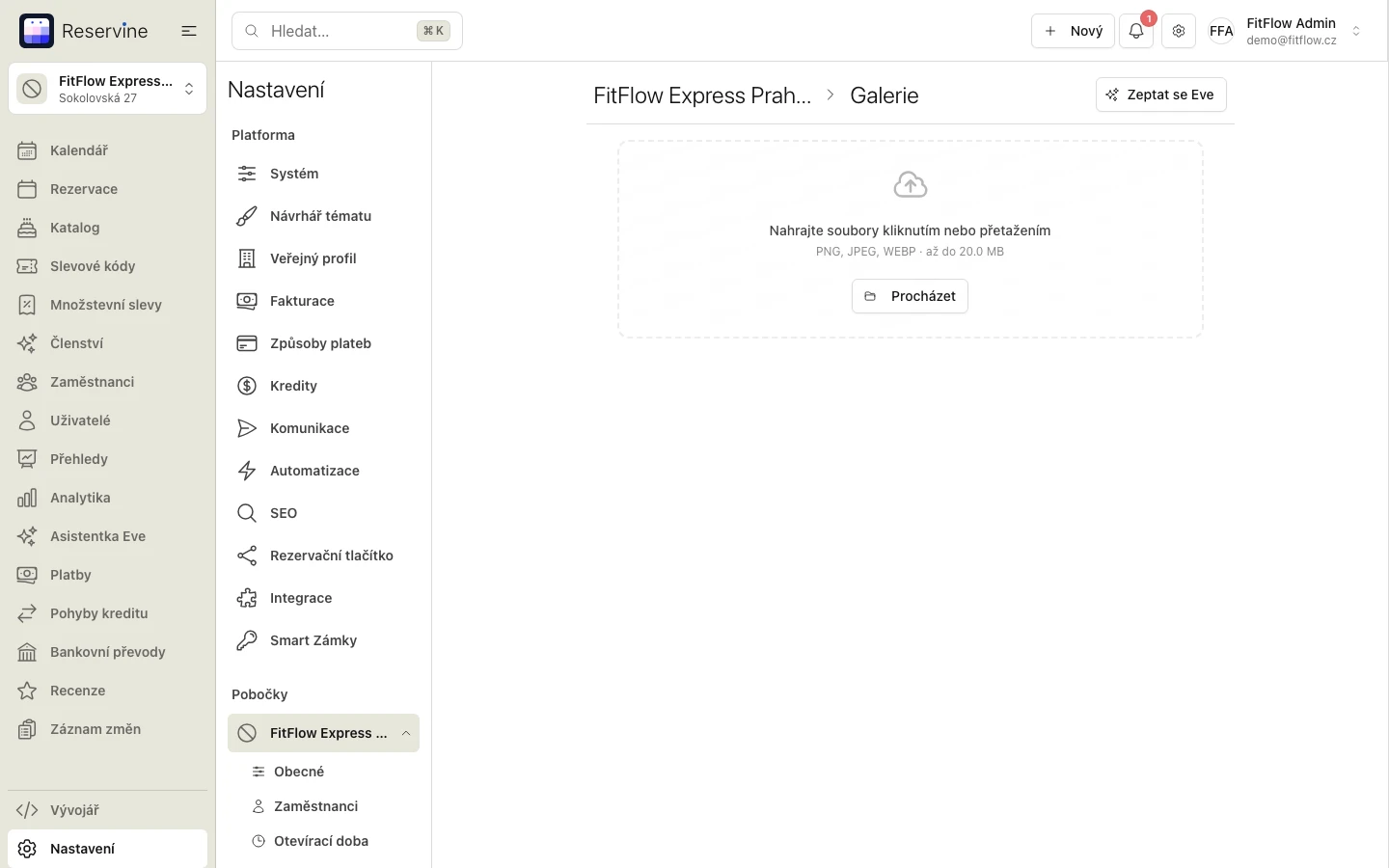
Gallery and cover image
A branch has two kinds of images:
- The cover image is set in Basic details. It is the branch's main visual in the branch list and in the booking page header.
- The gallery is a set of additional photos the customer browses on the branch profile.
Uploading photos
- Open Settings → branch → Gallery.
- Drag files into the upload area, or click it and pick them from your computer. You can upload several photos at once.
- Wait for the upload to finish. Photos are saved as they go; there is no need to save the page separately.
Supported formats are JPG, PNG and WebP. The maximum size of one file is 20 MB.
Order and deletion
- You change the order by dragging. The first photo is shown first on the branch profile, so choose it most carefully.
- You remove a photo with the cross on its thumbnail. Deletion is irreversible; you would have to upload the file again.
The gallery is per branch. When you run several branches, upload each one's own photos, otherwise the customer sees an empty profile.
What makes sense to upload here
The combination that works best:
- an overall view of the space,
- a detail of the equipment,
- the entrance or exterior, so the customer recognises the place,
- something that shows the atmosphere of the place.
Photo recommendations
- Photos should be bright and sharp; poor-quality shots put the customer off rather than attract them.
- Use current content, not old photos from before a renovation.
- Stick to a smaller number of quality shots, roughly 5 to 10, instead of twenty average ones.
- Landscape format looks best on the booking page.
Service and employee images
The branch gallery does not handle service images or team photos:
- you upload service images in the service detail in the Gallery section, see Services and products,
- an employee's profile photo in their detail, see Employees.
Checking on the booking page
- Open
yourname.reservine.meand pick the branch. - Check that all uploaded photos are shown on the branch profile in the right order.
- Look on a phone too; portrait photos are cropped differently in the gallery than on a computer.
Frequently asked questions
The upload failed. Check the format (JPG, PNG, WebP) and the file size up to 20 MB. Convert phone photos in HEIC format to JPG before uploading.
A photo is not shown on the booking page. Refresh the page without cache. If it is still missing, verify that you uploaded it to the right branch.
Can I upload a video? No, the gallery accepts images only.
A common mistake
The most common problem is not technical but content-related: the gallery exists but shows nothing. If your space is nice and functional, show it simply and without unnecessary effects.
Next step
After the photos, check how the branch looks to the customer, see First reservation.