Opening hours and schedules
How to set a branch's opening hours – schedule type, preset templates, time ranges for individual days, schedule validity and future changes.
Opening hours and schedules
Opening hours define when a branch can be booked. When you close the branch here, the customer cannot book anything outside that time, no matter how well your services or employees are set up. A schedule has a type (e.g. every week), a from–to validity and time ranges for individual days; you can start from a preset template.
Where to find it
In the admin open Settings → your branch → Opening hours (Nastavení → provozovna → Otevírací doba).
Step by step
1. Choose the schedule type and validity
In Settings → branch → Opening hours set the Schedule type (1) – typically Every week – and from when the schedule applies. The templates on the right (2) pre-fill the whole week with one click: Non-stop for 24/7 operation, Gym, Restaurant and others.
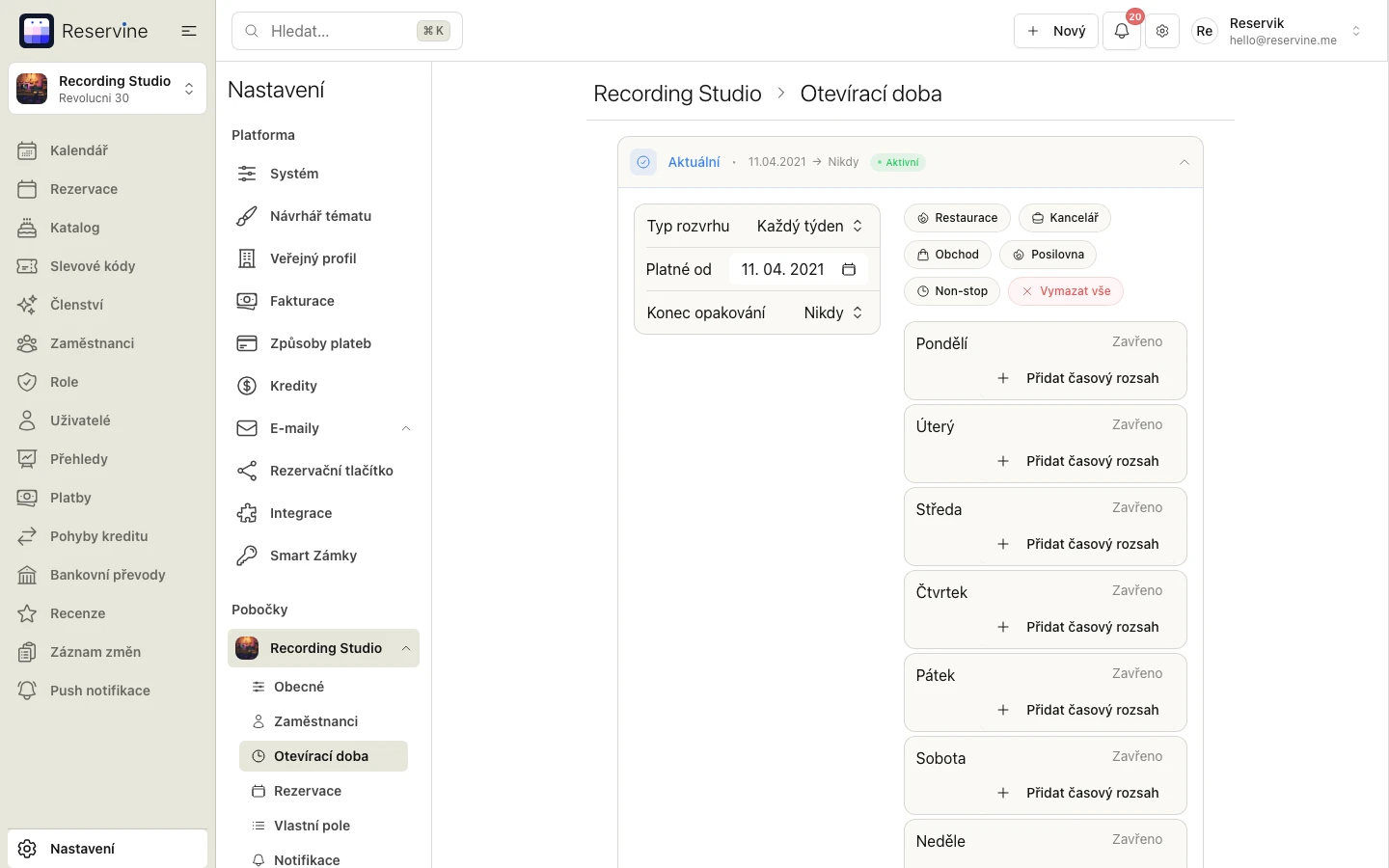
2. Fill in the time ranges for the days
For each day you add one or more time ranges with the Add time range button – for example 08:00–12:00 and 14:00–20:00 for a lunch break. A day without a range stays closed and no reservations can be created in it.
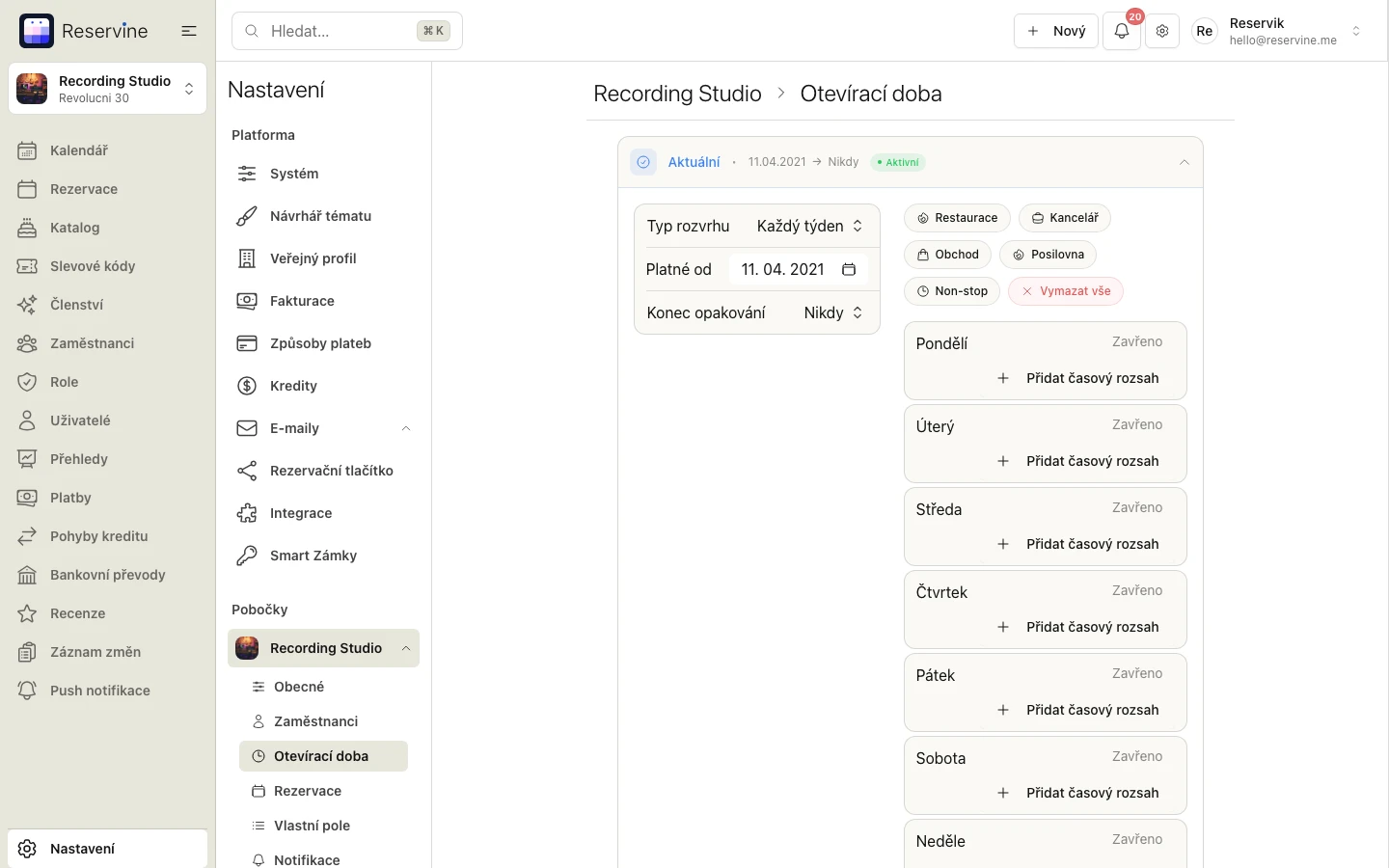
Self-service non-stop operation? Use the Non-stop template – and let smart locks guard the access.
3. Save and verify on the booking page
After saving, the opening hours are immediately reflected in the public calendar – outside opening hours the client cannot pick a slot. Check the first and last slot of the day to make sure they match your expectations.
Templates for a quick start
A template is only a starting point. After loading it you can edit it normally to match the reality of your operation: add a break, shorten the weekend or close a day entirely.
Future schedules and changes over time
The editor does not work with just one schedule. It also handles schedule groups with validity in time:
- the current schedule that applies now,
- a future schedule that starts applying from a given date,
- a historical schedule kept only for reference.
This is practical when you know you are changing opening hours from a certain date and do not want to overwrite the old schedule by hand. A schedule has a from–to validity (End of recurrence), so you can also prepare a temporary schedule, for the holidays say, and after it ends the regular one returns.
Multi-week recurrence
If you run shifts in cycles, you can choose a multi-week pattern in the Schedule type. It suits places where the operation does not repeat identically week after week.
Changes to opening hours are reflected in slot availability. When you shorten the hours on a day where reservations already exist outside the new time, resolve them deliberately – move or cancel them, see Rescheduling and cancellation.
How it relates to employees
The branch schedule is the ceiling. An employee can work inside it, but not outside it:
- branch open 8:00–20:00,
- employee works 10:00–18:00,
- the customer sees only 10:00–18:00 for that employee.
When the branch is closed, nothing gets through. You set individual people's shifts in Employee availability.
When the schedule is done
- the customer sees the expected days and times,
- slots do not start outside operating hours,
- the calendar in the admin matches reality,
- future changes are prepared ahead as a future schedule, not in a note on the side.
Frequently asked questions
Can I have a temporary schedule, for the holidays say? Yes – a schedule has a from–to validity (End of recurrence), so you can prepare a temporary schedule and after it ends the regular one returns.
How do I make a lunch break? Add two time ranges for the same day (e.g. 08:00–12:00 and 14:00–20:00) – no reservations will be possible between them.
Next step
After the opening hours it makes sense to finish services and products and then, depending on the booking model, employees.