Quantity discounts
Automatic discounts by the number of slots in one order – how to set up tiers, what the customer sees in the cart and how the discount meets discount codes.
Quantity discounts
A quantity discount is an automatic discount the customer gets when they book several slots at once in a single order. They enter no code – the discount applies itself as soon as the cart reaches the configured number of slots.
Where to find it
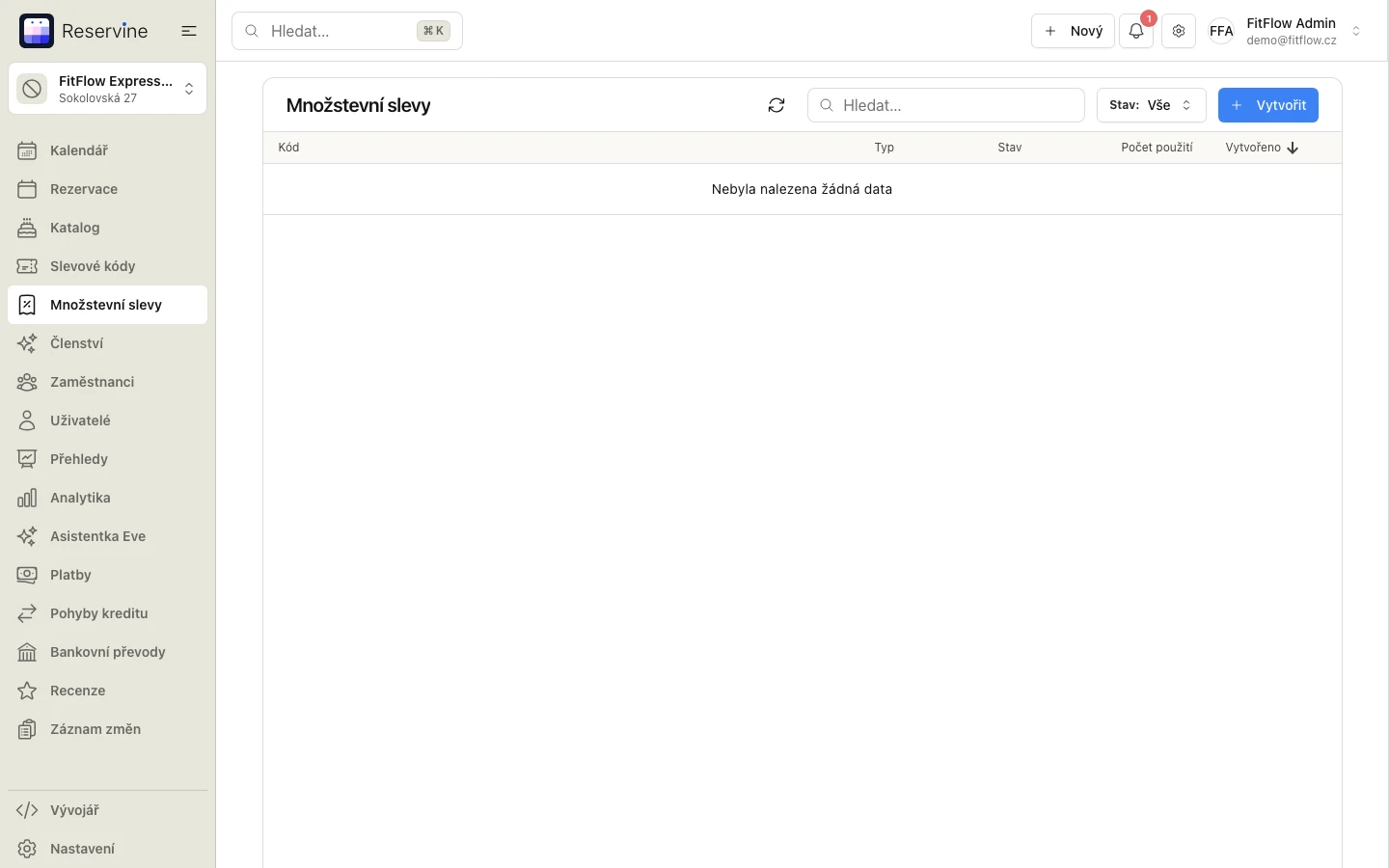
In the admin open the Quantity discounts (Množstevní slevy) item in the left menu. It is a separate page next to Discount codes; quantity tiers are never mixed into the list of ordinary codes.
How tiers work
Each tier has two values:
- Minimum bookings – from how many slots in one order the discount applies.
- Percentage discount – how many percent of the total cart price the customer saves.
You can stack several tiers, for example:
| Slots in the order | Discount |
|---|---|
| 3 and more | 5 % |
| 5 and more | 10 % |
| 10 and more | 15 % |
The highest tier the cart meets always applies. The number of uses is unlimited for quantity discounts – the same tier applies to every customer who meets the condition.
Creating a tier
- On the Quantity discounts page click New.
- Fill in the Name (internal, the customer does not see it).
- In the Minimum bookings field enter from how many slots the discount should apply.
- In the Percentage discount field enter the discount in percent.
- Optionally set Available from and Available until if the discount should apply only in a certain period.
- Save.
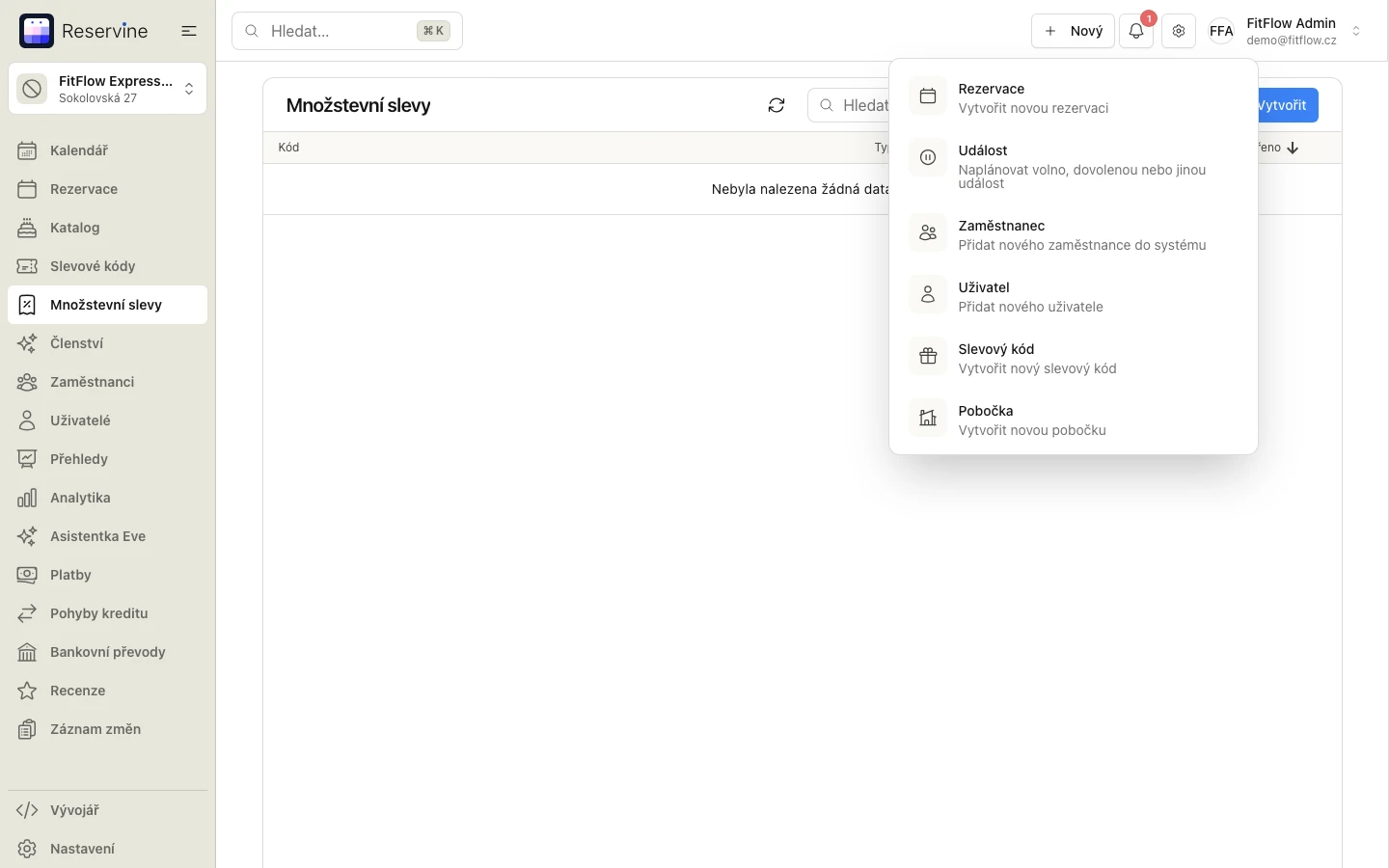
The form opened from this page is locked to the Quantity discount type – you do not pick a voucher type as with discount codes. The code is generated automatically and the customer never enters it.
The same Minimum bookings field also exists in the discount code form. As soon as you fill it in, the code behaves as a quantity discount and appears on this page, not among the discount codes.
What the customer sees
The quantity discount shows up in the booking flow in two places:
- Above the Continue button in the cart a hint appears along the lines of "2 more slots and you get a 10 % discount". When the customer meets the condition, it changes to "10 % discount active" and may show the next tier.
- In the price breakdown a Quantity discount 10 % row appears marked as automatic. It has no cross – the customer cannot remove it, because they did not enter it.
The hint in the cart is only indicative. The actual discount is calculated by the server when the cart is recalculated, so the amount in the price breakdown is always authoritative.
The Cart and checkout page describes what the whole cart looks like.
Quantity discount and discount codes
Only one discount ever applies in a single order:
- If the customer has an active quantity discount, the discount code field stays visible. When they enter a valid code, the code replaces the quantity discount.
- If the customer removes the manually entered code, the quantity discount applies automatically again.
- A discount from a membership behaves like a manually entered code – the customer does not swap it out and the code field is not shown.
The Vouchers and discount codes page describes discount codes and their types.
Quantity discount and pricing rules
The quantity discount is calculated from the final cart price. If you have pricing rules (an evening rate, for example), the price of each slot is first calculated according to the rules and only then is the percentage discount subtracted from their sum.
The discount applies to the whole cart, not to individual slots. In the reservation listing and in Analytics you will therefore see one discount item per order.
Tracking results
In Analytics you will find the Reservations with a quantity discount and Total quantity discount metrics, which tell you how many orders used the discount and how much you granted in total. In the sales overview these orders are filtered by the Quantity discount type.
Setup tips
- Start with one tier. Three stacked tiers make sense only once you know how many slots customers usually order.
- Set the threshold just above the usual number of slots. The discount should motivate adding one more slot, not reward what the customer would do anyway.
- Time-limited tiers (Available from / until) suit seasonal promotions; after they end they automatically stop applying.