Calendar
How to work with the admin calendar - Day to Week views, status filter, employee columns, a new reservation or block and moving a reservation by dragging.
Calendar
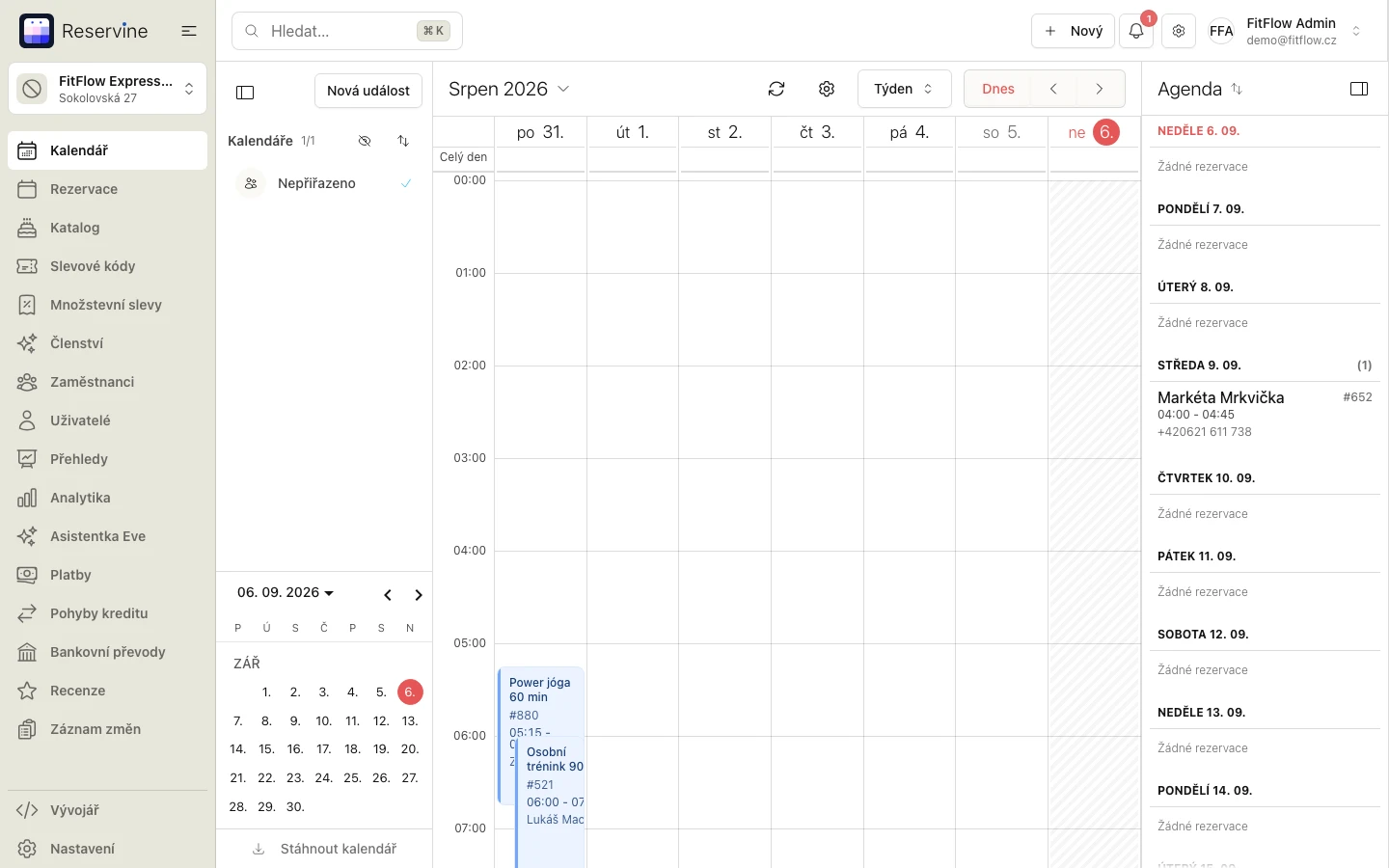
The calendar is the main workspace of the admin. You see reservations and blocks in it, create new events and it is where you most often get to the reservation detail from. Changes from clients and colleagues flow into it continuously.
Where to find it
Calendar (Kalendář) is the first item of the main menu and opens right after signing in to the admin at your-name.reservine.me/admin.
Views
You switch the view in the calendar header:
| View | What it shows | When it suits |
|---|---|---|
| Day | One day by time slots | Operations during the day |
| 2 days | Today and tomorrow side by side | Short-term planning |
| 3 days | Three consecutive days | Medium-term overview |
| Week | Monday to Sunday | The most common view for management |
| Schedule | A text list of events (agenda) | Quick searching without the grid |
In the Day and Week views you can enable Employee columns in the calendar settings. Instead of one column per day you see a column per employee, which suits branches with the Service appointments booking model where you want to see the workload of individual people.
Moving in time
- The Previous and Next arrows move you by the displayed period.
- The Today button takes you back to the current day.
- The date picker at the top opens a small calendar for jumping to a specific date.
- On a computer you scroll with the mouse wheel, on a phone and tablet by dragging with a finger.
When you leave the calendar open on a past date for more than six hours, the admin asks on the next opening whether you want to Go to today. You can also Stay on the current date.
Employee calendars
The Calendars panel on the left lists the branch's employees. For each you can:
- hide or show their reservations with the switch next to the name,
- change the order in sorting mode (the sort icon, then dragging),
- open the employee's Detail.
The panel can be minimised so the calendar gets more room.
Status filter
In the calendar settings (the cog icon in the header) you will find the Status section. You show either All, or only slots in the Active, Cancelled or Rescheduled status. The filter is handy when you want to see only live slots without the cancelled ones.
In the same menu you also toggle the Full-screen view and the Show agenda panel on the right.
Colours and event types
- Reservations are coloured blocks in which you see the client's name and time.
- A Block is a grey block without a client. It marks time when reservations are not accepted, for example a break, maintenance or a private event. Clients do not see it on the booking page and the slot is not offered to them.
- You recognise cancelled and rescheduled slots by the status label; you hide them with the status filter.
Creating an event from the calendar
Click New event (in the left panel or in the header) and choose the type:
Reservation
- Choose For whom?: Existing customer, New customer or By address (a company).
- Pick the Service and Employee. Next to the employee you immediately see Available / Unavailable.
- Set the Start and End, or use Calculate duration based on the service.
- Add Notes.
- Decide on the Send SMS confirmation switch. Every SMS costs credit; turn it off for walk-in clients.
- Save.
Block
Enter the time range and optionally a recurrence. For regular breaks do not forget to set the recurrence so you do not have to create them every week.
Clicking an empty spot in the grid creates an event right at that time. If the slot cannot be used, the calendar reports Cannot add an event to this slot.
Working with an existing reservation
Opening the detail
Clicking a reservation opens the reservation detail, where you change slots, write to the client, check the payment or cancel the reservation.
Moving by dragging
You move a reservation's slot directly in the calendar:
- Grab the reservation block with the mouse.
- Drag it to a new time or day.
- The calendar asks Do you want to change the reservation time? and shows the original and new time.
- Confirm.
The change is saved and written to the reservation's activity. Details and limits are in Rescheduling and cancellation.
Refreshing data
New reservations from clients appear in the calendar automatically. If you doubt whether you see the current state (for example after a connection outage), click the Refresh icon in the header.
Calendar export
The Download calendar button in the left panel exports the events, which you can import into another calendar application.
Tips for efficient work
- Week is the ideal default view: you see the whole working week at once.
- Enable Employee columns when you need to quickly see who is free.
- The Status filter set to Active hides cancellations and clears up a busy day.
- To look up a specific reservation, rather use Reservations, where you can filter by period and status.
Run the day
Everyday work with reservations - calendar, reservation list and detail, rescheduling and cancellation, the ordering flow, cart and checkout, and reports.
Reports
The basic admin dashboard - period selection, revenue, reservation count, average price, retention, cancellation rate, sent SMS and a chart with comparison.