Managing reservations
The table list of reservations in the admin - filtering by period and status, sorting, pagination, opening the detail and creating a new reservation.
Managing reservations
Besides the calendar, Reservine also offers a table list of all reservations. It is handy when you are looking for a specific reservation, want to see only a certain period or are dealing with a larger volume of reservations at once.
Where to find it
In the main menu click Reservations (Rezervace). The list shows the reservations of the branch you have chosen in the branch switcher.
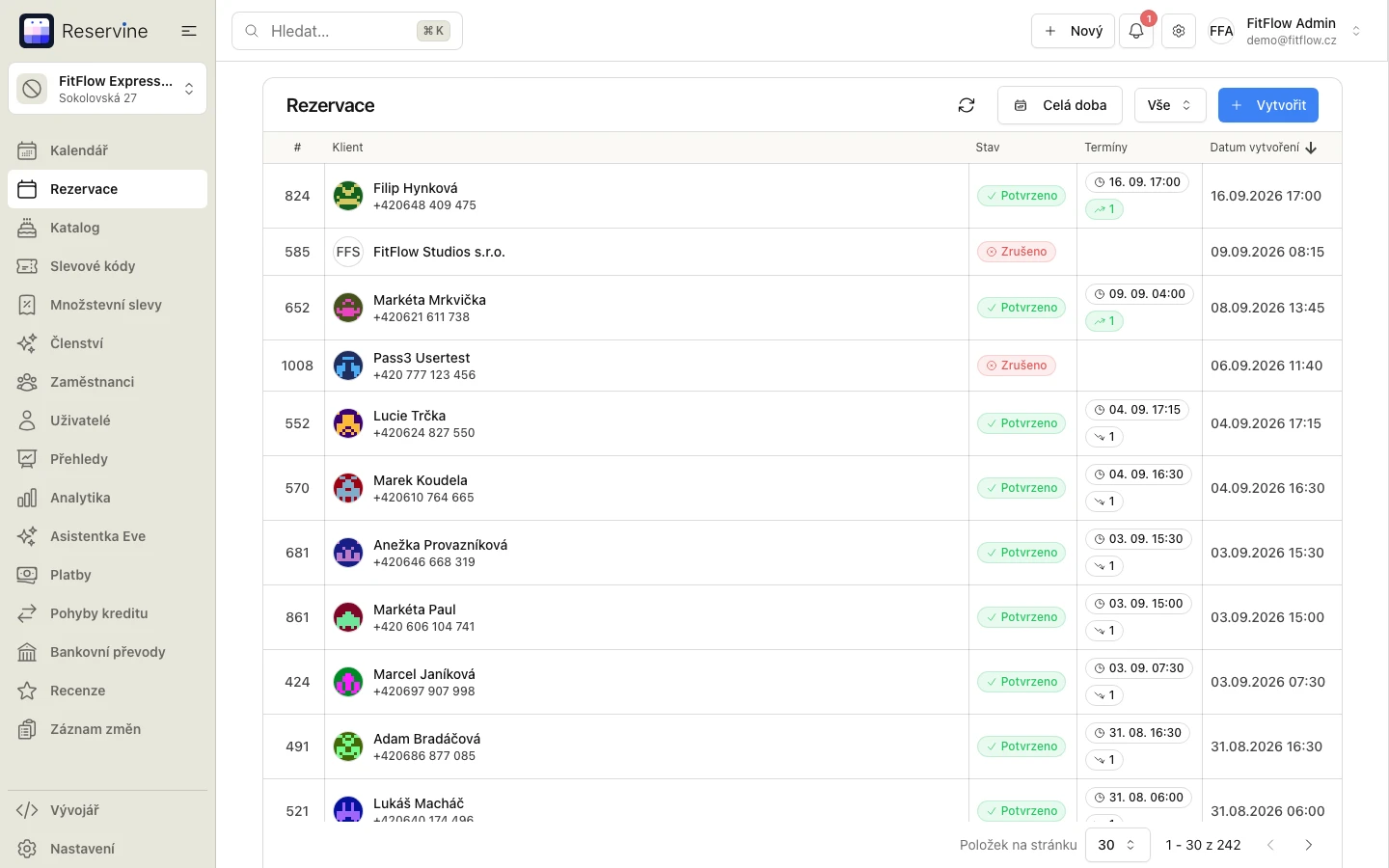
Reservations table
On a computer reservations are shown in a table with these columns:
| Column | Content |
|---|---|
| Number | The reservation number by which you look it up, also in communication with the client |
| Client | The client's name, for a company reservation the company name |
| Status | A coloured reservation status label |
| Slots | The booked slots; for multi-day reservations the first slot and the count of further ones |
| Created | When the reservation was created |
Clicking the Status or Created header sorts the table. The default sorting is newest first.
On a phone the table switches to a list with infinite scrolling. You will find the filters and the new reservation button in the bottom bar.
Reservation statuses
| Status | What it means |
|---|---|
| Awaiting confirmation | The reservation was created but is not complete yet (typically waiting for payment) |
| Reserved | A valid reservation, the client is expected |
| Cancelled | The reservation was cancelled by you or the client |
A reservation additionally has individual slots with the status Active, Cancelled or Rescheduled. A reservation with several slots can thus still be Reserved even when the client cancelled one slot. Attendance (attended / no-show) is recorded in the reservation detail; it is not a reservation status.
Filtering
Above the table there are two filters:
Period
The period picker opens a menu with presets: Today, Tomorrow, This month, Last 7 days, Last 30 days, Next 7 days, Next 30 days, All time and others, or a Custom from–to range. The default is All time.
Status
You show All, or only reservations in the Awaiting confirmation, Reserved or Cancelled status.
If you do not see a reservation you expect, check the chosen branch and the set filters first. The most common cause is a period that does not include the reservation.
Opening the detail
Clicking a row opens the reservation detail with all information, activity, messages and actions. The browser address gets the reservation number appended, so you can send the link to a colleague.
New reservation
The Create button in the top right opens the same form as in the calendar:
- For whom?: existing customer, new customer or a company by address.
- Service and Employee with an immediate availability check.
- Start and End, or Calculate duration.
- Notes and the Send SMS confirmation switch.
- Save.
Refresh and pagination
- The Refresh icon in the header loads current data from the server. Normally it is not needed; the list updates itself.
- Below the table there is pagination with a choice of 10, 25, 50 or 100 records per page. When the branch changes, the list returns to the first page.
When to use the table instead of the calendar
Use the table when:
- you care about the list, not the layout in time,
- you want to see all reservations for a period, for example to check payments,
- you are handling cancellations or reservations awaiting confirmation,
- you need to quickly find a reservation by number or client.
Tips for everyday work
- Morning check: period Today + status Reserved shows who is coming today.
- Unfinished orders: the Awaiting confirmation status reveals clients who have not paid.
- Weekly overview: Next 7 days + Reserved for planning shifts.
- Cancellations: the Cancelled status for the Last 30 days shows how often clients cancel; Analytics digs deeper.
Related pages
- Calendar: the layout of reservations in time.
- Reservation detail: where most actions are done.
- Rescheduling and cancellation: moving, cancelling and compensation.
Reports
The basic admin dashboard - period selection, revenue, reservation count, average price, retention, cancellation rate, sent SMS and a chart with comparison.
Reservation detail
What the reservation detail holds - client and status header, slots, payment, attendance, activity, messages to the client and actions such as cancellation.