Reservation detail
What the reservation detail holds - client and status header, slots, payment, attendance, activity, messages to the client and actions such as cancellation.
Reservation detail
The reservation detail is the workspace for one specific order. You open it by clicking a reservation in the calendar or a row in the reservation list. It opens as a layer over the page, so after closing you return to where you were.
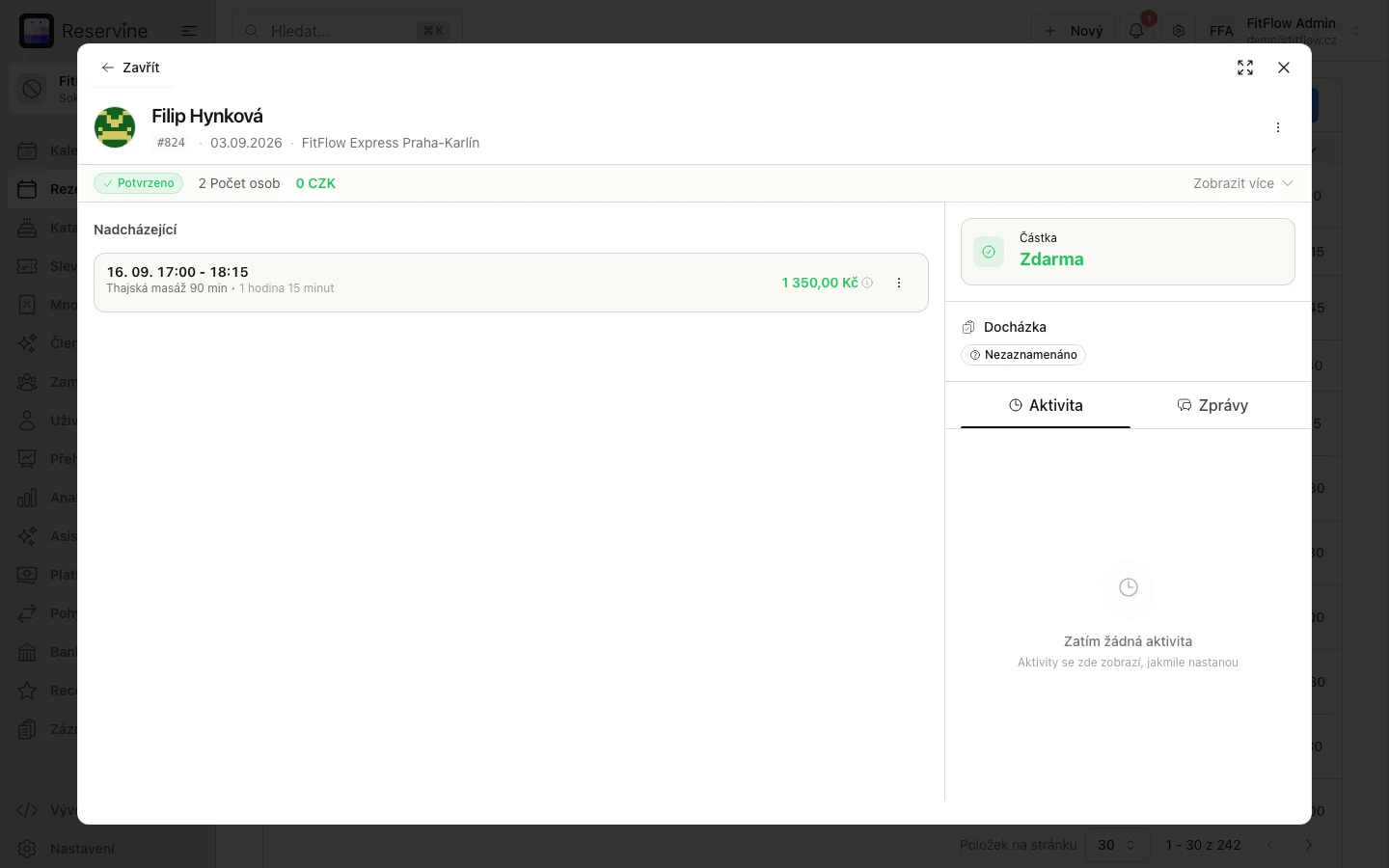
Layout
On a computer the detail has a header and two columns: slots on the left, payment, attendance, any custom fields and the Activity and Messages tabs on the right. On a tablet and phone the same is folded into the Slots, Activity and Messages tabs.
Header
- Client: name and avatar. Clicking the name opens the client's profile with the history of all their reservations.
- Reservation status: Awaiting confirmation, Reserved or Cancelled.
- Number of people, Branch, Number of slots and Total duration of the reservation.
- After expanding (Show more) the contact with the Message (email) and Call buttons, the address and, for a company reservation, the Company ID and VAT ID.
- The client's note from the order, if they filled one in.
Action menu
The menu icon in the header offers:
| Action | When it is available |
|---|---|
| Download invoice | When the reservation has an issued invoice (see Invoices) |
| Resend confirmation | For a valid reservation; you choose Send email or Send SMS |
| Show user detail | When the reservation is tied to a client account |
| Cancel reservation | When the reservation has at least one active slot that can still be cancelled |
Slots
A reservation consists of one or more slots (for example training sessions on two days). Slots are divided into In progress, Upcoming, Past and Cancelled. For each slot you see the time, service, employee, the slot price according to the pricing rules and the status Active, Cancelled or Rescheduled.
An active slot has two actions:
- Reschedule: opens the choice of a new slot (available until the change deadline).
- Cancel slot: cancels only this slot, the others remain (available until the cancellation deadline).
Both are described in Rescheduling and cancellation.
The price next to a slot is the price according to the pricing rules without discounts and vouchers. You see the amount actually paid in the payment section.
Payment
The Payment information section shows the amount, status (for example Awaiting payment) and the Payment history with individual transactions. For a card payment through Stripe a Show in Stripe link is available, for the client a Show customer link. A free reservation is marked Free; until a payment arrives, the section reports No payment yet.
Refunding a card payment is done when cancelling the reservation, see compensation.
Attendance
The Attendance section records whether the client arrived:
- Mark as attended / Mark as no-show you enter by hand.
- At branches with smart locks attendance is recorded automatically when the client unlocks the lock (From smart lock).
- Clear attendance returns the state to Not recorded.
Attendance flows into Analytics, where you track the no-show rate.
Custom fields
If the branch has additional order form fields set in Settings → Branch → Custom fields, you will find their values in the expandable Custom fields section.
Activity
The Activity tab is a chronological record of everything that happened to the reservation: creation and confirmation, status change, time change (with the original and new time), slot cancellation including the reason, added notes, received payments, sent SMS reminders and, with smart locks, door access (Access granted, Customer entered the premises, Access denied). The record cannot be edited or deleted.
It is useful when you are resolving a dispute with a client, several people edited the reservation or you need to find out when a change happened.
Messages
The Messages tab is for communication about the reservation. Each message is either:
- Private: an internal note for the team, the client does not see it.
- Public: Send to customer sends the message to the client by email (and by SMS when SMS is enabled). The admin asks for confirmation before sending.
Write sensitive operational notes as private. A public message goes to the client immediately and cannot be taken back.
What is handled here most often
- The client did not get the confirmation: menu → Resend confirmation → email or SMS.
- The client wants another time: Reschedule next to the slot.
- The client is cancelling: Cancel slot next to the slot, or Cancel reservation in the menu for all slots; the compensation choice follows.
- Checking the payment: the payment section and transaction history.
- The client did not arrive: Mark as no-show in attendance.
Related pages
Managing reservations
The table list of reservations in the admin - filtering by period and status, sorting, pagination, opening the detail and creating a new reservation.
Customer ordering flow
What a reservation looks like through the customer's eyes with Space rental and Service appointments and what happens before checkout.