Rescheduling and cancellation
How to reschedule a slot, cancel one slot or a whole reservation, what the client can do themselves and how to compensate - a voucher or a Stripe refund.
Rescheduling and cancellation
Moves and cancellations are part of normal operation. Reservine offers tools for both in the reservation detail, including compensating the client. This page describes exactly what happens and when each action is available.
Where to find it
Open the reservation in the calendar or in the reservation list. Next to every active slot open the ⋮ menu; in it you will find Reschedule and Cancel slot; the header menu has Cancel reservation.
Deadlines: when an action is possible and when not
Every slot has two deadlines derived from the branch settings (Settings → Branch → Reservations, the "Can change" and "Can cancel" rules):
- Until when the slot can be changed: after it passes, the Reschedule button disappears.
- Until when the slot can be cancelled: after it passes, Cancel slot disappears and the admin reports Cannot cancel.
The deadlines apply equally to you and the client. A slot that has already ended cannot be cancelled. Details on setting the deadlines are in Pricing rules.
Rescheduling a slot
- In the reservation detail find the slot and click Reschedule.
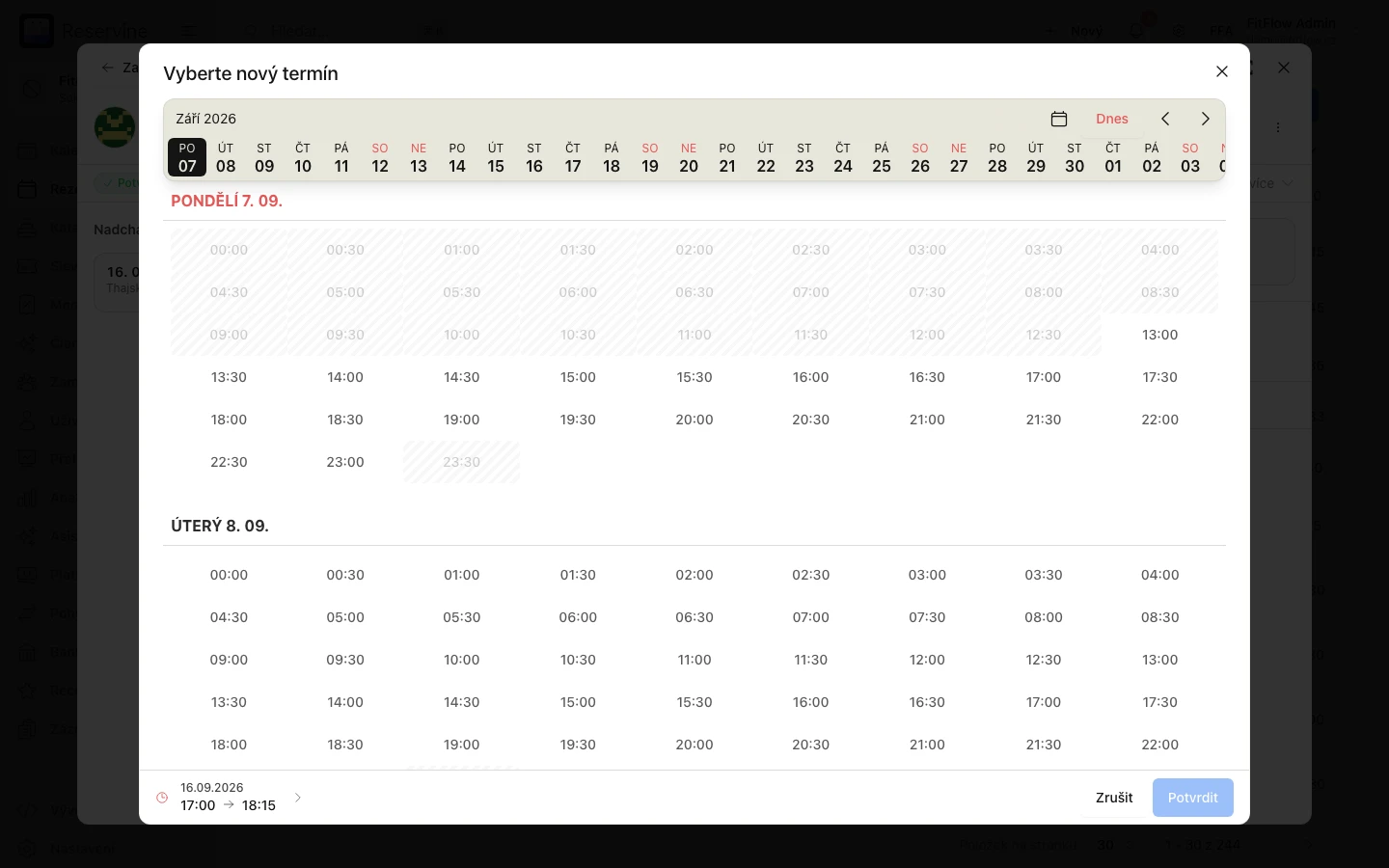
- The Pick a new slot dialog opens with the same grid of free times the client sees on the booking page.
- Pick the new day and time and confirm with Confirm (the button unlocks after a slot is picked).
After rescheduling:
- the slot moves to the new time in the calendar and the original slot is freed,
- the reservation status does not change (Reserved stays),
- Time changed from … to … is written to the Activity,
- with smart locks the PIN is automatically carried over to the new time window.
Moving by dragging in the calendar
A faster path for small shifts: in the calendar drag the reservation block to a new time. The calendar asks Do you want to change the reservation time? and shows the original and new time. After confirmation the same change happens as through the dialog.
Cancellation
Cancelling a single slot
A reservation can have several slots. When the client cancels only part:
- Next to the specific slot click Cancel slot.
- Fill in the Cancellation reason (required).
- Confirm. The other slots stay active and the reservation remains valid.
Cancelling the whole reservation
- In the header menu choose Cancel reservation.
- For a reservation with several slots pick which slots are cancelled. Slots past the deadline are marked Cannot cancel and remain.
- Fill in the Cancellation reason and confirm.
- The Compensation for a cancelled reservation dialog opens (see below).
After cancellation the slots are freed for other clients, the reservation gets the Cancelled status and Reservation cancelled with the reason is written to the activity.
Cancellation by the client
The client can cancel or reschedule a slot themselves in their profile on the booking page while the branch deadlines are running. After the deadline they do not see the buttons and have to contact you. As an administrator you have the same deadlines; once they pass, nobody cancels the slot.
You set the deadlines per branch. If you want to let clients cancel later than yourself, that is not possible; there is one deadline for both sides.
Compensation for a cancelled reservation
When you are the one cancelling (an employee's illness, a breakdown) or want to accommodate the client, the admin offers the Compensation for a cancelled reservation dialog after cancellation. In it you see the client, the Compensation value (the price of the cancelled slots) and, for reservations with a discount, also the Original total price and the applied Discount / voucher.
There are three options:
Create a voucher (recommended)
Creates a gift voucher for the value of the cancelled reservation, which the client redeems in the cart on their next order.
- Choose Create voucher.
- Edit the Voucher value if it should differ from the reservation price. When the slot price is not available, the admin asks for manual entry.
- Set Valid until and confirm with Create voucher.
The admin confirms with the message Compensation voucher … was created. You will find the voucher in Discount codes.
Refund via Stripe
Shown only when the client paid by card through Stripe and the payment has not been refunded yet.
- Choose Refund via Stripe. The admin shows the Amount to refund.
- Confirm with Refund payment.
The whole card payment is returned through Stripe. Stripe keeps the processing fee of the original transaction. The action cannot be undone. On success you see … was refunded to the customer's card; the Open in Stripe link leads to the transaction in the Stripe dashboard.
Stripe charges fees for refunds, which is why the admin shows a warning next to the refund and offers a voucher as the recommended choice. Payments in cash, by transfer or by voucher cannot be refunded through Reservine; compensate them with a voucher or outside the system.
No compensation
No compensation closes the dialog and sends nothing. Use it when the client cancels themselves or after the deadline.
What to check before cancelling
- Was the reservation paid? Check the payment section in the detail; based on that you choose a voucher or a refund.
- Should they get a replacement slot? Then Reschedule is cleaner than cancelling and creating anew.
- The Cancellation reason is written to the reservation's activity; write it clearly.
- Smart locks: a cancelled slot automatically loses its PIN.
Most common problems
| Problem | What to check |
|---|---|
| The Reschedule button is missing | The change deadline has passed or the slot is not Active. |
| The Cannot cancel message | The cancellation deadline has passed, or the slot has already ended. |
| I do not see Refund via Stripe | The payment was not made by card, or it has already been refunded (This payment has already been refunded). |
| The refund failed | Try again; the message The refund could not be processed means an error at Stripe. Verify in the Stripe dashboard. |
Related pages
- Reservation detail: where all the actions are performed.
- Calendar: moving by dragging.
- Discount codes: managing compensation vouchers.
- Stripe Connect: card payments and fees.