Payment settings
Which payment methods to offer customers and when the customer should pay – the full amount upfront, a deposit, or on site.
Payment settings
Payment settings determine two things: how the customer pays and when they should pay. From an operational point of view it is a business decision: whether you want to push payment upfront, work with a deposit, or leave the larger part of payments to be made on site.
Where to find it
In the admin open Settings → Payment methods (Nastavení → Způsoby plateb). The page has two parts: Payment methods and Payment preferences.
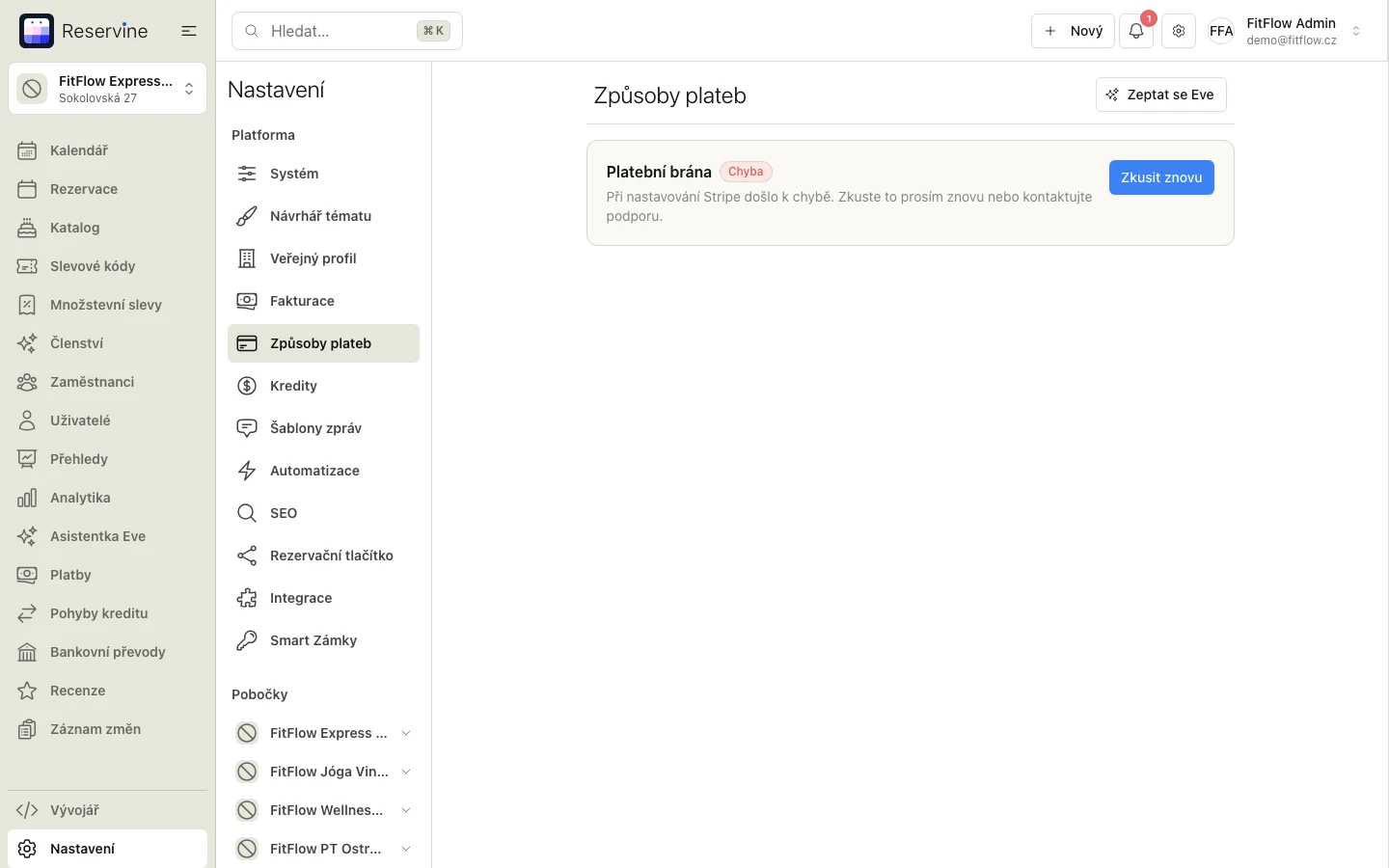
Payment methods
Pick the payment methods you want to offer your customers. You enable each one separately:
| Method | What it means | Prerequisite |
|---|---|---|
| Online payments | The customer pays by card, Apple Pay or Google Pay when creating the reservation | Connected Stripe Connect |
| Cash | The customer pays in cash at your premises | None |
| Card payments on site | Card payment via a terminal or tap-to-pay | Your own terminal |
| Other | Other on-site methods, for example a transfer; you record the transaction with a note | None |
Enabled methods are offered to the customer in the last step of the order. An on-site payment is confirmed by staff in the reservation detail, see Reservation detail.
Payment preferences
Choose how you want to receive payments when new reservations are created:
Require upfront payment
Charge the full amount when the reservation is created. Without paying, the customer does not complete the reservation. This way you can prevent the client from not showing up. Requires Online payments to be enabled.
Don't require upfront payment
Payments can be collected online when the reservation is created or at the branch after the service is provided. The customer chooses in the cart whether to pay now or on site.
Require an upfront deposit
Charge part of the amount when the reservation is created and the rest later. You enter the deposit as a percentage of the price (default 25 %) or as a fixed amount. The customer pays the balance on site.
A change of the payment preference applies to new reservations. Reservations created before the change keep their original terms.
When to want payment upfront
Upfront payment makes sense mainly when:
- you have high demand and free slots are scarce,
- you do not want to risk the customer not showing up,
- the reservation blocks valuable time or space.
When to leave payment on site
Common with services where:
- customers come regularly and you know them,
- you want the lowest possible barrier when ordering,
- the amount may still change on site (extras, a longer service).
A deposit as a compromise
If you want neither extreme, use a deposit. It is a good compromise for more expensive reservations or longer blocks: the customer is motivated to come, but does not pay everything upfront.
Practical scenarios
- Beauty salon: enable Online payments and Cash, preference Don't require upfront payment.
- Coworking or meeting room: enable Online payments, preference Require upfront payment.
- Sports centre: enable Online payments, Card payments on site and Cash, preference Require an upfront deposit.
What happens after payment
- A successful online payment is recorded in Payments → Transactions with the Paid status and an invoice is issued.
- A card payment can be Refunded from the reservation detail back to the card through Stripe. Cash and other methods are not refunded this way.
- A failed payment triggers the Failed payment automation, if you have it enabled, see Notifications.
Frequently asked questions
The customer does not see card payment in the cart. The Online payments method is enabled, but Stripe is not in the Connected status. Finish the connection on the Stripe Connect page.
Where does the customer pay the rest of the deposit? On site. The customer pays the remaining amount during the visit and you record it in the reservation detail.
Can I have different preferences for different branches? Payment methods are set in the Platform section, that is, for the whole account. If you need a different regime for one branch, handle it with the price and cancellation terms in its price list.
Related pages
Sell and retain
Payments, Stripe, invoices, discount codes, memberships and reviews – everything you start dealing with once reservations are running.
Stripe Connect
Step by step connection of your Reservine account to Stripe so clients can pay by card, Apple Pay and Google Pay. With real admin screenshots.