Memberships
Membership plans in the admin - percentage discount, fixed discount or bundle, one-time purchase and subscription, customer orders and the discount in the cart.
Memberships
A membership is a way to sell a customer a benefit in advance: a discount on every reservation or a prepaid bundle of slots. You define a plan, the customer buys it on your booking page as a one-time purchase or a monthly subscription, and the discount is then applied automatically on every order.
Where to find it
In the admin open the Memberships (Členství) item in the left menu. The section has two tabs:
- Plans – definitions of the membership plans you offer,
- Orders – who bought what, what state it is in and which invoices exist for it.
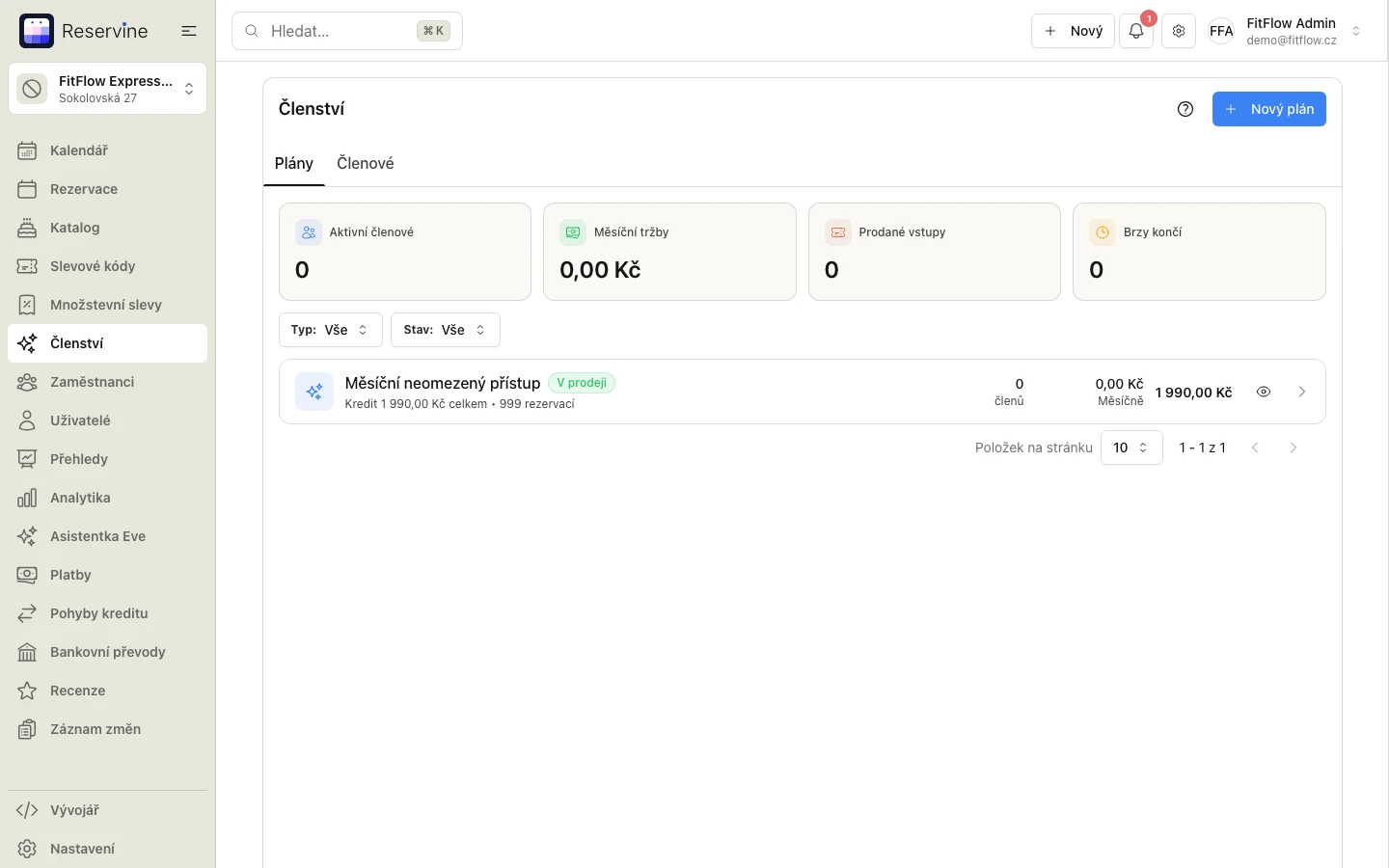
Selling memberships requires a connected Stripe Connect. Without it the customer cannot complete the payment; free orders (a gift or compensation) can be created without Stripe.
Membership types
When creating a plan you pick one of three types. The type cannot be changed after creation.
| Type | What the customer gets | Ideal for |
|---|---|---|
| Percentage discount | A percentage discount off the total price of every reservation | VIP members, long-term customers |
| Fixed discount | A fixed discount amount off every reservation | One-off promotions, seasonal discounts |
| Bundle | A prepaid bundle of reservations at a discounted price | Subscriptions, loyalty programmes |
The How does it work? button in the plan form shows a calculation example for the chosen type.
Creating a plan
- On the Plans tab click New.
- Choose the Membership type and fill in the Name and Description – the customer sees both in the shop.
- In the Value and price section enter the discount value (percentage or amount, for a bundle the total credit) and the Price the customer pays for the membership, including the Currency.
- In the Usage section set the Number of uses and Charge per: Whole reservation deducts one use for the whole reservation regardless of the number of slots, Each slot deducts one use for every slot separately. Then the Validity in days (a 14-day pass, for example) or in months, and optionally the Minimum order value.
- In the Purchase options section enable Allow subscription (an automatically renewing payment for every validity period; a month plan gets fresh uses every month, a day plan every one of its periods), Allow one-time purchase (no renewal), or both.
- Leave Apply automatically on if the discount should apply itself in the cart. Save.
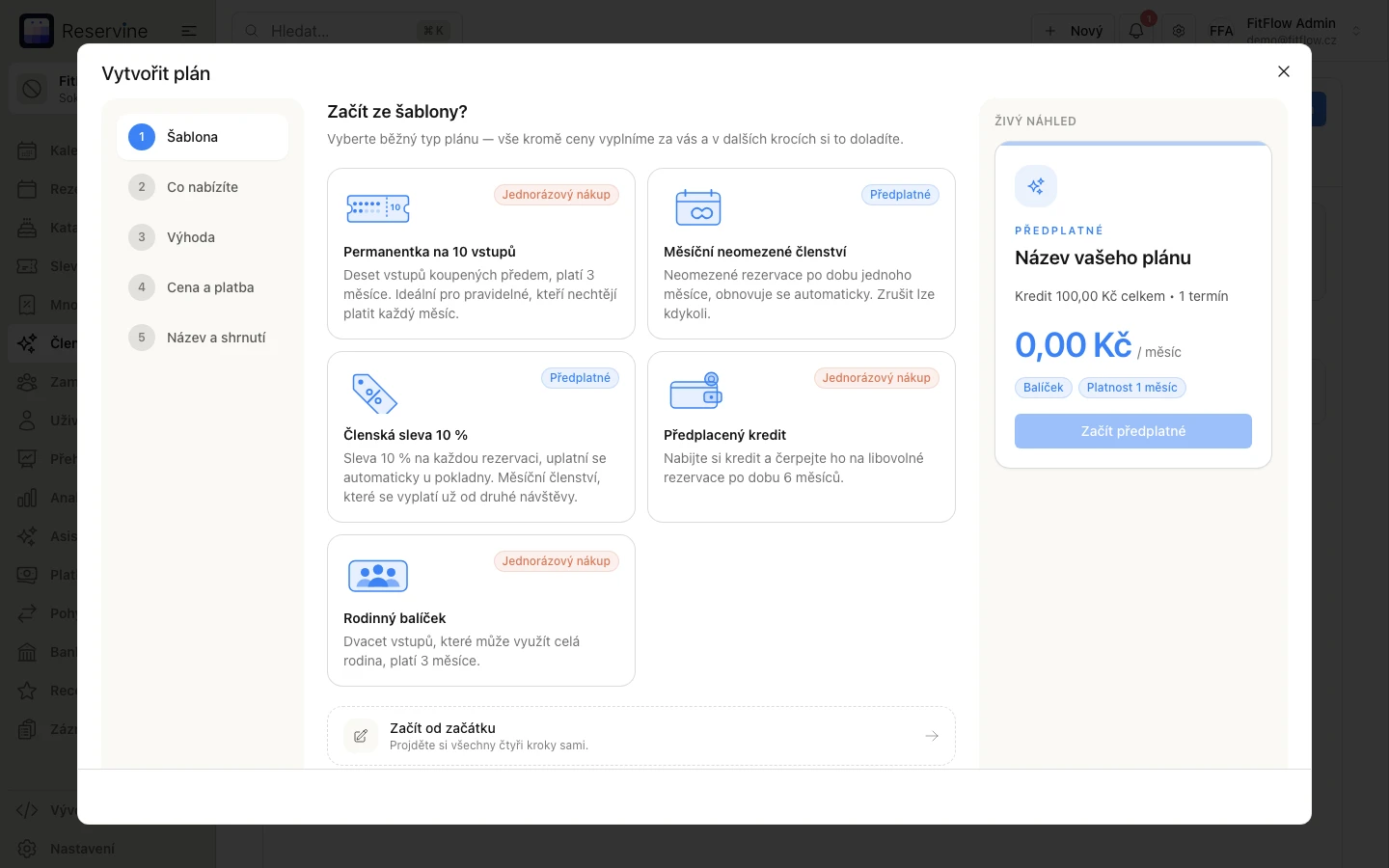
After a plan is created, only the name, description, validity and door access code can be changed. The type, value, price, number of uses and purchase options stay fixed. Need different terms? Create a new plan and deactivate the old one.
Activation and visibility
Active plans are visible to customers. In the plans table you can Deactivate a plan at any time – it disappears from the shop, but existing orders keep running. Order determines how plans are sorted in the shop. A plan can also be deleted; for plans with orders prefer deactivation.
Orders
The Orders tab shows all purchases and subscriptions across plans. For each order you see the customer, plan, Order type (Purchase or Subscription), Status, amount, period and creation date. You can filter by type and status.
Order statuses:
| Status | Meaning |
|---|---|
| Active | The membership is valid, the discount is applied |
| Pending | The order was created, the payment has not happened yet |
| Past due | The subscription renewal payment failed |
| Cancelled | The subscription was cancelled |
| Completed | The one-time purchase was used up or expired |
Order detail
Clicking opens the Order detail with the Details, Vouchers (discount codes generated for the customer, their usage and validity) and Invoices tabs. For a subscription you can Cancel subscription – the membership runs until the end of the paid period and is marked Will be cancelled at the end of the period. Until then it can be Resumed. You download the invoice with the Download invoice button.
Free order
With the Create order button on the Orders tab you set up a membership for a specific customer without payment – as a gift or compensation. You pick the user, plan and order type; the order is created for free and the discount works the same as for a paid one.
What the customer sees
The shop on the booking page
On your booking page the customer has the Memberships and gift vouchers tab. Active plans are shown as cards with the benefit description, price and a Subscribe or Buy once button depending on what you allowed for the plan. A subscription renews and is invoiced once per plan period: monthly, once every 3 months, or every 14 days, for example.
To buy, the customer must sign in. One membership cannot be subscribed to twice – for an active plan the customer sees the Currently active label and a link to manage it instead of the buy button.
Customer profile
In the profile on the Memberships tab the customer sees their memberships with a One-time / Subscription filter, the renewal or expiry date, the generated vouchers and, for a subscription, the Cancel subscription and Resume subscription buttons.
Applying at payment
When the customer has an active membership and the plan has Apply automatically on, a Membership discount row with the Membership active label appears in the cart. The discount cannot be removed by hand and the discount code field is not shown. The discount is deducted according to the Charge per setting – from the whole reservation, or from each slot.
Details of the cart are on the Cart and checkout page.
Memberships in analytics
In Analytics you track the Memberships sold and Membership revenue metrics; the customer detail has a Membership orders list.
Setup tips
- Start with one plan. One well-configured offer is almost always better than a catalogue of five variants.
- A percentage discount works where prices vary; a fixed discount is the easiest to understand; a bundle encourages regularity.
- Enable subscriptions only where the customer really comes every month. Otherwise offer a one-time purchase with a longer validity.
Related pages
Vouchers and discount codes
How to create a percentage discount, a discount in CZK or a gift voucher, set validity and limits, share the code by link or QR code and track its use.
Customer reviews
How customers rate a visit, where you see reviews and how you reply to them, and how to show ratings on the booking page.