Invoices
How invoices are created in Reservine, where to find them, how to filter and download them and how they relate to refunding a card payment.
Invoices
Invoices in Reservine are created automatically based on payment events. They are not hand-written documents but a system output tied to payments for reservations and membership orders.
Where to find it
In the admin open Payments (Platby) and switch to the Invoices tab. The Transactions tab next to it shows the payments themselves.
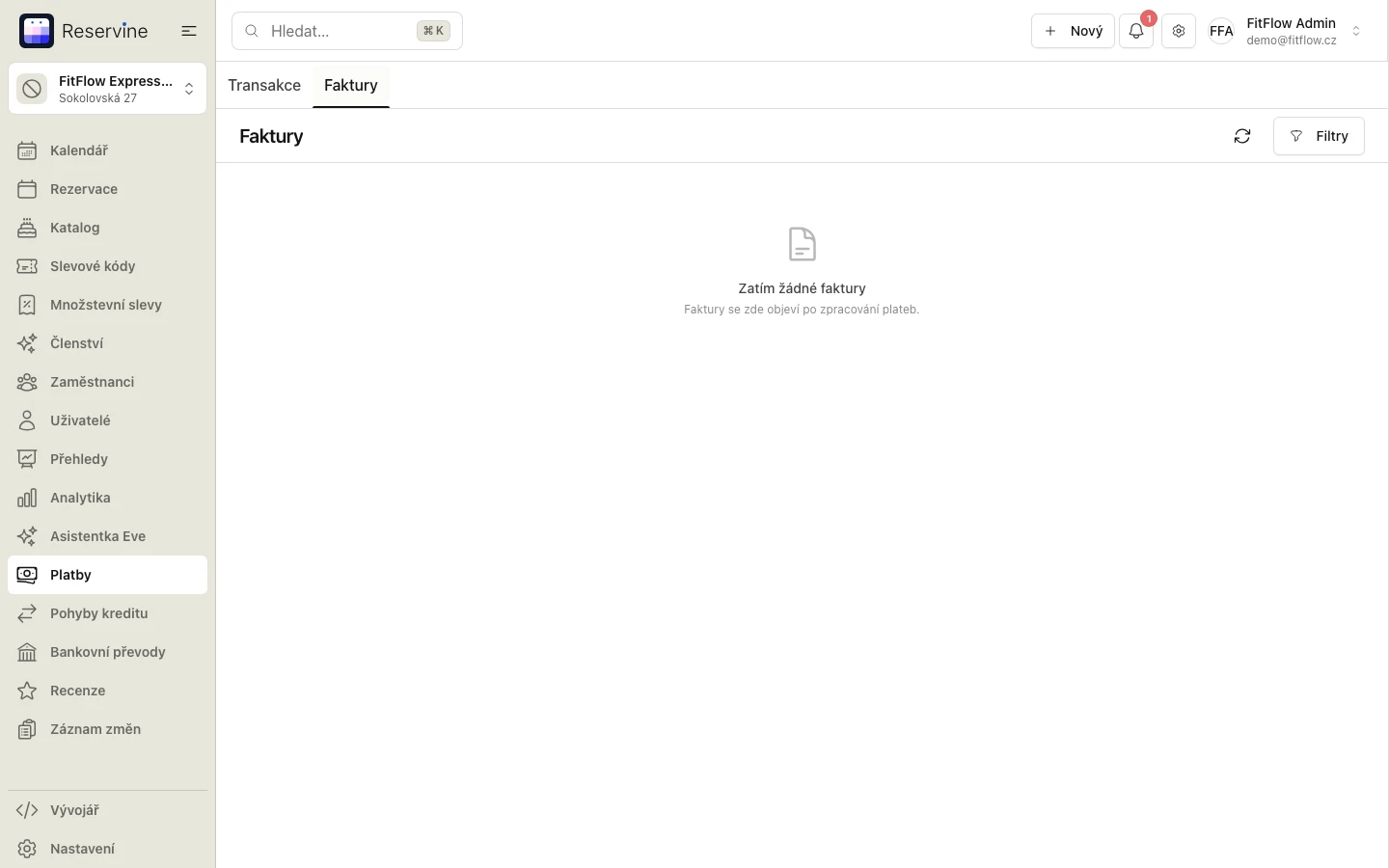
Invoices for a single membership order are also in Memberships → Orders → detail → Invoices, see Memberships.
When an invoice is created
An invoice is issued automatically after the payment is processed:
| Related item | When |
|---|---|
| Reservation | After a successful payment for a reservation |
| Order | After buying a membership or voucher; for a subscription every month on renewal |
| Platform | Documents from Reservine for credit top-ups |
An invoice cannot be issued manually. If the customer pays on site, the document is created only after the payment is confirmed in the reservation detail.
Invoice list
The table shows the Invoice number, Customer, Branch, Date, Amount, Type and Status. Above the table you filter by Type (Invoice, Proforma, Credit note, Quote) and Status; the View switch changes the table density (Compact, Standard, Detailed).
Invoice detail
Clicking a row opens the Invoice detail. At the top you switch between the Overview (structured data), PDF and Card views. You will also find here:
- Invoice information – number, date, amount, status,
- the customer's Billing details,
- the Related item with a Show reservation or Show order link,
- the Download (PDF) and Print buttons.
How to send an invoice to the customer
- A customer with a membership downloads the invoices for their order themselves from their profile on the Memberships tab.
- You can insert the Invoice link block into email templates, see Templates.
- For a one-off, download the PDF from the detail and send it by hand.
Your billing details
The supplier details on invoices (name, address, company ID, VAT ID) are set in Settings → Billing. Changes apply only to future invoices. If you need to issue a new version of a previous invoice, contact support.
An issued invoice cannot be edited. Handle corrections of accounting details with a new document, not by editing the PDF by hand.
Refunding a payment
Only a card payment can be refunded: in the reservation detail choose Refund payment. The whole payment is returned through Stripe to the customer's card, Stripe keeps the processing fee and the action cannot be undone. The transaction gets the Refunded status. Cash, bank transfer and credit cannot be refunded through Reservine – for those consider compensation with a discount code.
Invoices from Reservine
The documents Reservine issued to you for credit top-ups are in the Credit section under Invoices from Reservine. Details are on the Credits and billing page.
Frequently asked questions
A reservation has no invoice. Check in Payments → Transactions that the payment has the Paid status. The invoice is created only after the payment is processed; for an on-site payment after it is confirmed in the reservation detail.
The customer wants an invoice for their company. An issued invoice cannot be rewritten, so add the customer's company billing details to their card before they pay.
What are Proforma and Credit note? A Proforma is a request for payment before it is received, a Credit note is a corrective document for a refunded payment. Both types are in the Type filter.
When you come here most often
- the customer wants to download a document again,
- you are checking that a paid reservation has an invoice,
- you are looking up a payment by document number or customer.
Related pages
Stripe Connect
Step by step connection of your Reservine account to Stripe so clients can pay by card, Apple Pay and Google Pay. With real admin screenshots.
Vouchers and discount codes
How to create a percentage discount, a discount in CZK or a gift voucher, set validity and limits, share the code by link or QR code and track its use.