Customer reviews
How customers rate a visit, where you see reviews and how you reply to them, and how to show ratings on the booking page.
Customer reviews
Reviews are one of the best things you can get out of a working operation. When you collect them continuously, they help with the trust of new customers and with repeat bookings.
Where to find it
- Managing reviews: left menu Reviews (Recenze).
- Display on the booking page: Settings → branch → Reservations, the Show ratings switch.
How a review is created
- The customer completes a reservation.
- They get an email with a rating button, or open the Ratings tab on your booking page and click Write a review.
- They rate the visit with stars and optionally write a comment.
- The review appears in the admin in the Reviews section and, if you have the ratings display enabled, on the booking page too.
How to ask for a review
Most reviews come from a short request sent shortly after the visit:
- In Automations use the Review request recipe: a day after a successful slot an email asking for a review goes out, see Notifications.
- Insert the Review link block, a button for rating the visit, into any email template, see Templates.
It works best when the thank-you goes out shortly after the visit, the message is not long and the request for a rating is natural.
Managing reviews in the admin
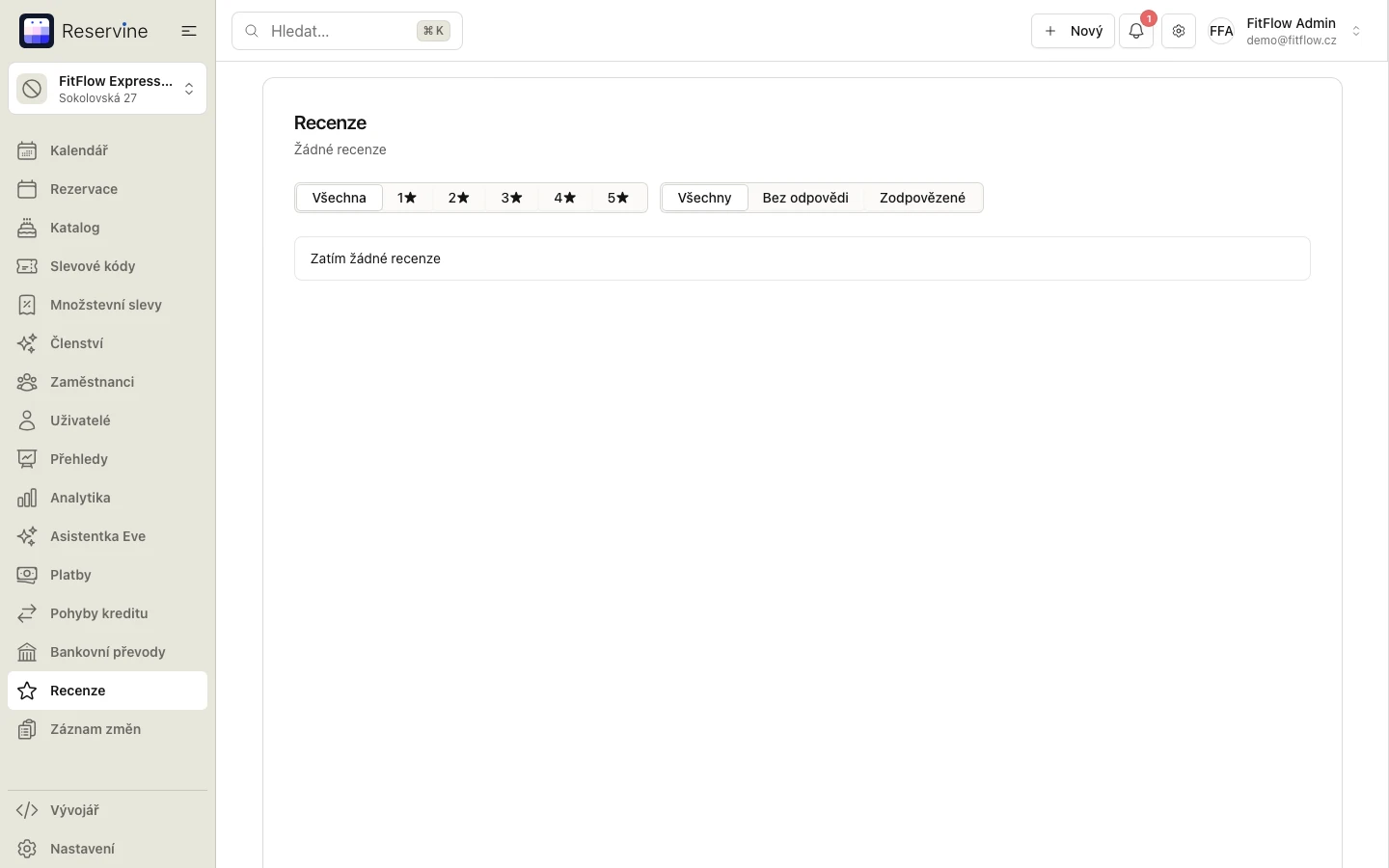
The Reviews page shows all reviews with the star count, comment, customer and reservation. You can filter by status (All, Unanswered, Answered) and by star count.
Replying to a review
- Next to the review click Reply.
- Write the reply and send it. The review gets the Answered label.
- You can later Edit or Delete the reply; after deletion the customer no longer sees it.
After the reply, the customer receives the Reply to a review email, if you have the template enabled. On the booking page the reply is shown under the review as Owner's reply.
Reply mainly to critical reviews. A short factual reply shows other customers that you take feedback seriously.
Display on the booking page
The Show ratings switch in the branch reservation settings determines whether clients see star ratings of services and team members. When it is on, the booking page shows:
- the average rating and number of reviews,
- the Rating distribution by stars,
- Recent reviews with comments and your replies.
Keep the display off until you have at least a few reviews; an empty No ratings yet section does not add trust.
Ratings of services and team members
A rating is tied to a reservation, so it also carries over to the service and to the employee who performed it. When Show ratings is on, clients see stars next to services and team members when choosing in the booking flow. Reviews thus help not only the branch but also the individual people on the team.
Frequently asked questions
Can I delete a review? No. Only your own reply can be deleted and edited. Report inappropriate content to support.
Which reservation is a rating tied to? A rating from an email is tied to the reservation the link came from. In the admin you see the customer and the slot next to the review, so you can find it easily.
Why does almost nobody fill in reviews? Most often the problem is in the timing and text of the message, not in the rating feature itself. Shorten the text and send the request within 24 hours of the visit.
Related pages
Memberships
Membership plans in the admin - percentage discount, fixed discount or bundle, one-time purchase and subscription, customer orders and the discount in the cart.
Automate and AI
Overview of the tools that work for you on their own — automations, the Eve assistant, analytics, message templates and notifications.