Stripe Connect
Step by step connection of your Reservine account to Stripe so clients can pay by card, Apple Pay and Google Pay. With real admin screenshots.
Stripe Connect
Online payments in Reservine run through the Stripe payment gateway. Connecting takes roughly 10–15 minutes, happens entirely in a secure Stripe form, and once done the money from reservations goes straight to your bank account. Without the connection, online card payments will not run.
Where to find it
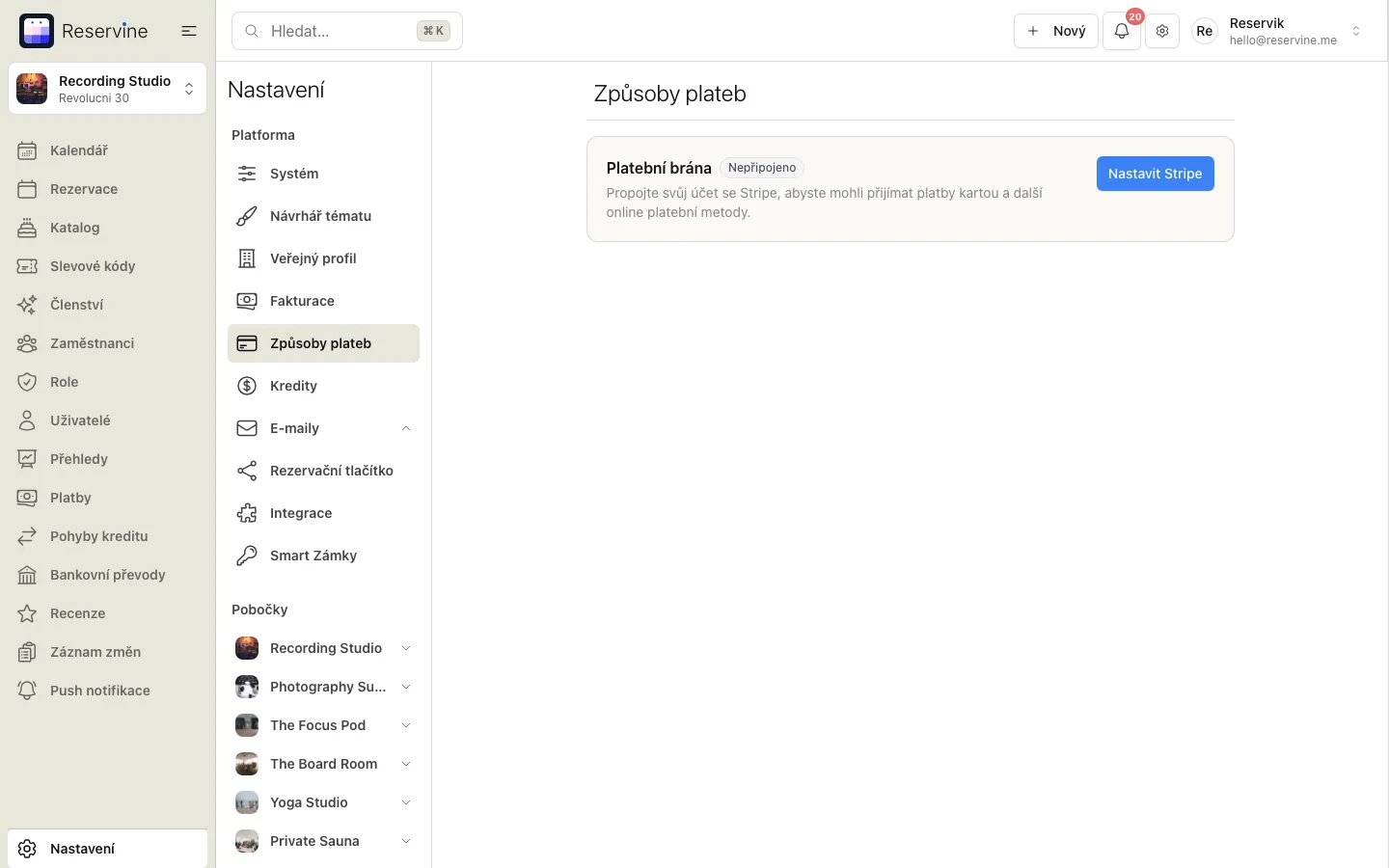
In the admin open Settings → Payment methods (Nastavení → Způsoby plateb). The Payment gateway block shows the connection status: Not connected, Incomplete, Processing, Connected or Error.
What to prepare
Stripe verifies your business during registration. It goes quickly when you have at hand:
- Company ID (IČO) – the identification number of your company or trade,
- Business address and the web address of your booking page,
- Bank account number to which Stripe will send the money from payments,
- Proof of identity – the ID card or passport of the director / owner,
- Phone – Stripe verifies the login with an SMS code.
Step by step
1. Open Settings → Payment methods
Sign in to the admin at yourname.reservine.me and open Settings in the left menu. In the Platform section choose Payment methods and click the Set up Stripe button.
2. Register in the Stripe form
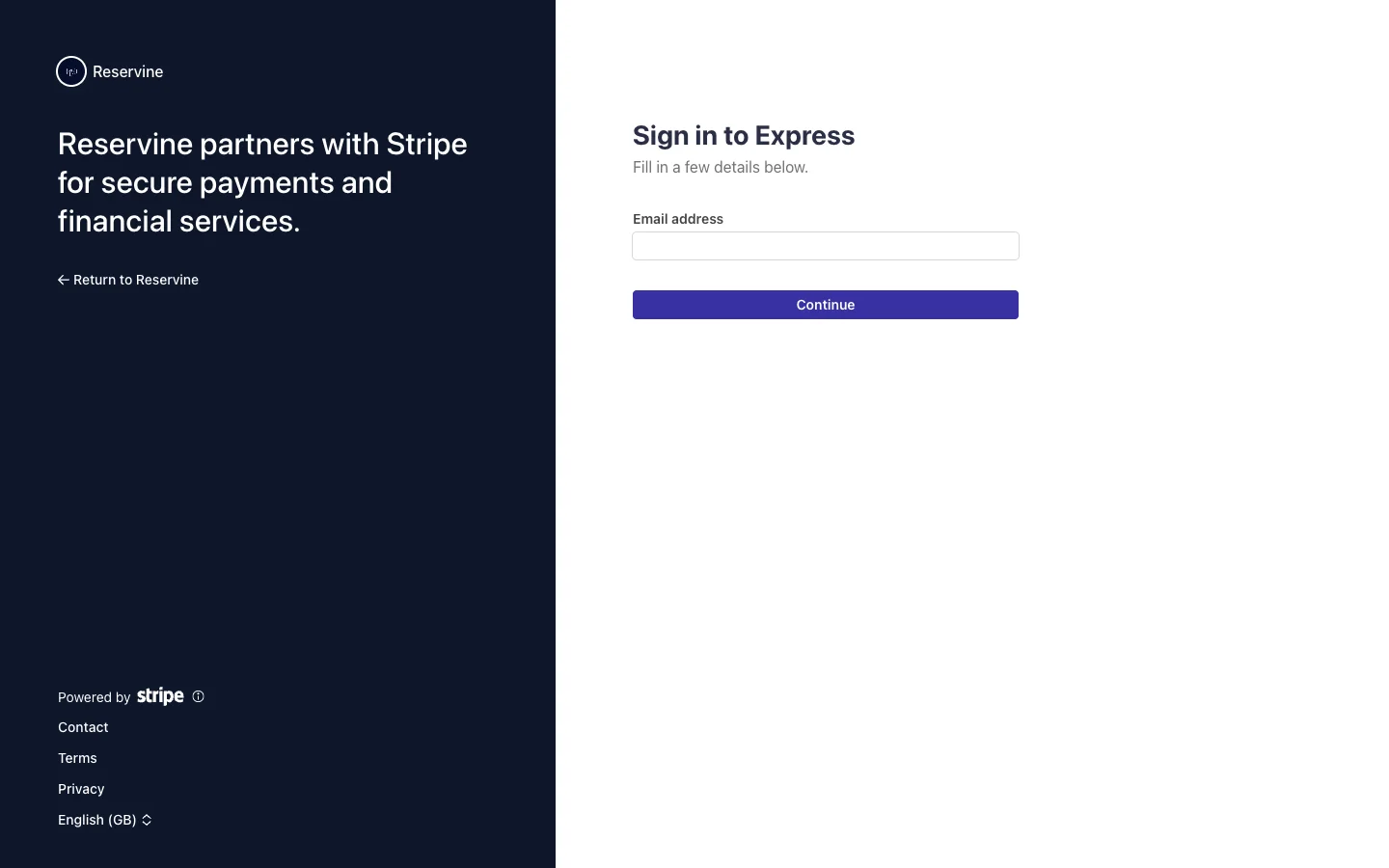
After clicking we redirect you to a secure Stripe form. Enter your email and phone number – Stripe sends you a verification SMS code. Reservine never sees your login or payment details; everything stays with Stripe.
3. Fill in your business details
Stripe walks you through the company details step by step: company ID, address, industry, bank account for payouts and identity verification. You can leave the form at any time and come back to it later – an unfinished registration is not lost.
As the industry pick the category matching your operation, e.g. "Fitness and gyms" or "Other
services". As the website enter the address of your booking page, e.g.
yourname.reservine.me.
4. Finish the registration and check the status
After submitting the form Stripe returns you to the Reservine admin. The payment gateway status changes to Connected and from that moment clients can pay by card, Apple Pay and Google Pay.
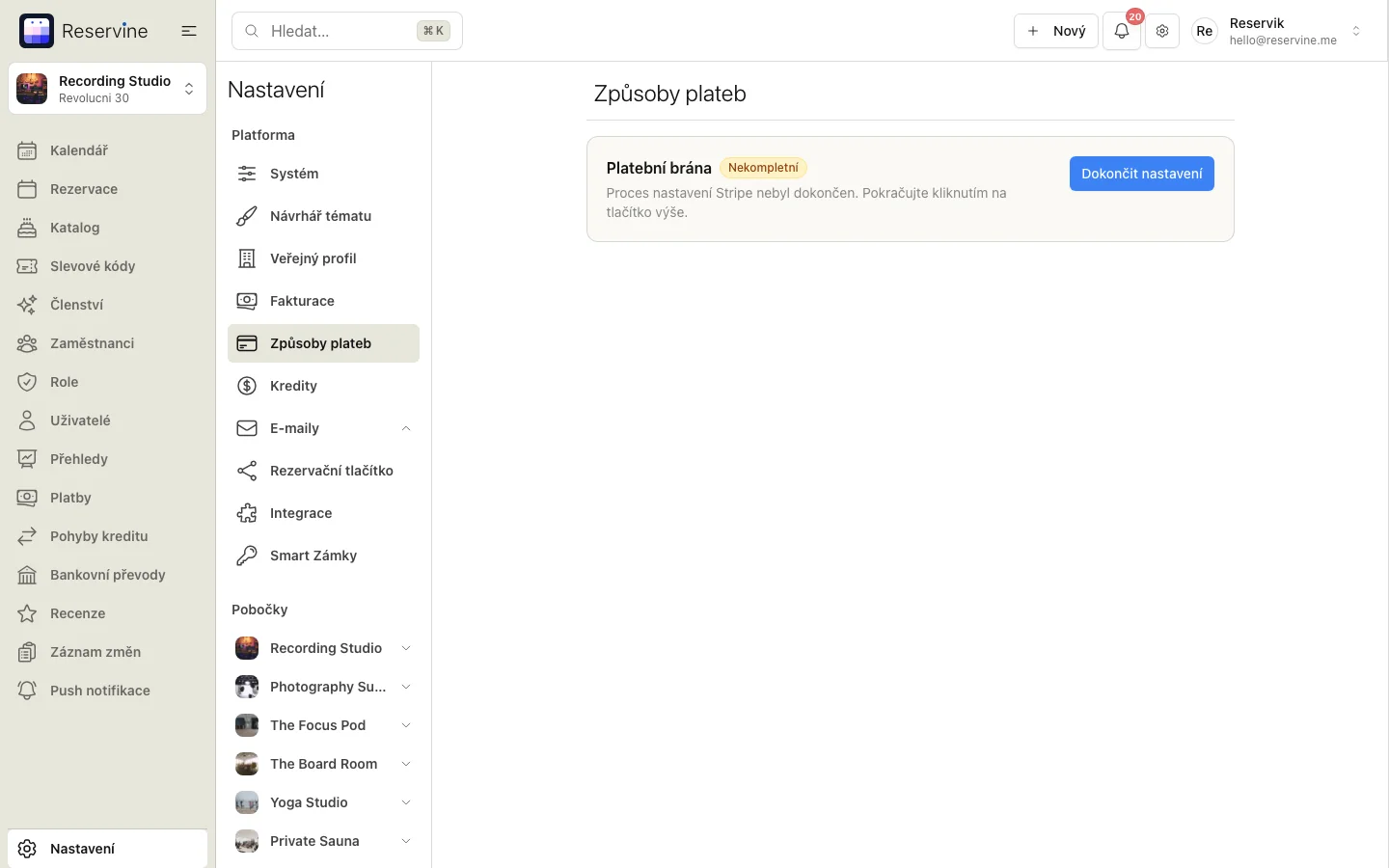
If you interrupted the registration, you will see the Incomplete status in the same place and a Complete setup button – clicking it continues where you left off.
What to watch after returning
- The status is Connected. The Processing status means Stripe is still verifying the account – wait and refresh the page.
- Stripe does not ask for further verification. If it does, the Open Stripe dashboard button takes you straight to the requirements.
- On the Error status use Try again; if the error repeats, contact support.
Until Stripe is in the Connected status, the customer may see online payment in the payment settings, but will not actually complete the payment. Therefore enable the Online payments method only after connecting.
How it works after connecting
Payments from reservations go directly to your Stripe account and Stripe automatically pays them out to your bank account. You will find the overview of all payments in the admin in the Payments section (the Transactions tab), the documents on the Invoices tab. Reservine's commission on online payments also covers all Stripe fees – you pay no other fees.
After connecting, enable the Online payments method and choose the payment preference on the Payment settings page. Stripe is also a prerequisite for selling memberships and vouchers.
Frequently asked questions
When will the money arrive in my account? Stripe pays out automatically to your bank account, by default at daily to weekly intervals according to your Stripe account settings. The first payout after registration may take a little longer (usually 7 days) because Stripe verifies the new account.
Do I need my own contract with Stripe? No. By registering in the form you create your Stripe account connected to Reservine – no further contract or monthly Stripe fee is needed.
I interrupted the registration. What now? Nothing is lost. In Settings → Payment methods click Complete setup and continue where you left off.
Can I refund a card payment? Yes, from the reservation detail with the Refund payment action. The whole card payment is refunded through Stripe and Stripe keeps the processing fee. Other payment methods (cash, transfer, credit) cannot be refunded this way.